Connecting Mailchimp
Bring your Mailchimp subscribers into TheatreHQ, or send your audience to Mailchimp, keeping everyone's marketing choices.
Lots of societies already send their newsletter through Mailchimp. Connecting it lets you bring those subscribers into your TheatreHQ audience list, or send your TheatreHQ audience across to Mailchimp, without exporting and importing spreadsheets by hand.
You don't need Mailchimp to email your audience: TheatreHQ has its own email campaigns. Connecting is most useful if you're moving away from Mailchimp, or want to keep using it for your newsletter.
1. Get your Mailchimp API key
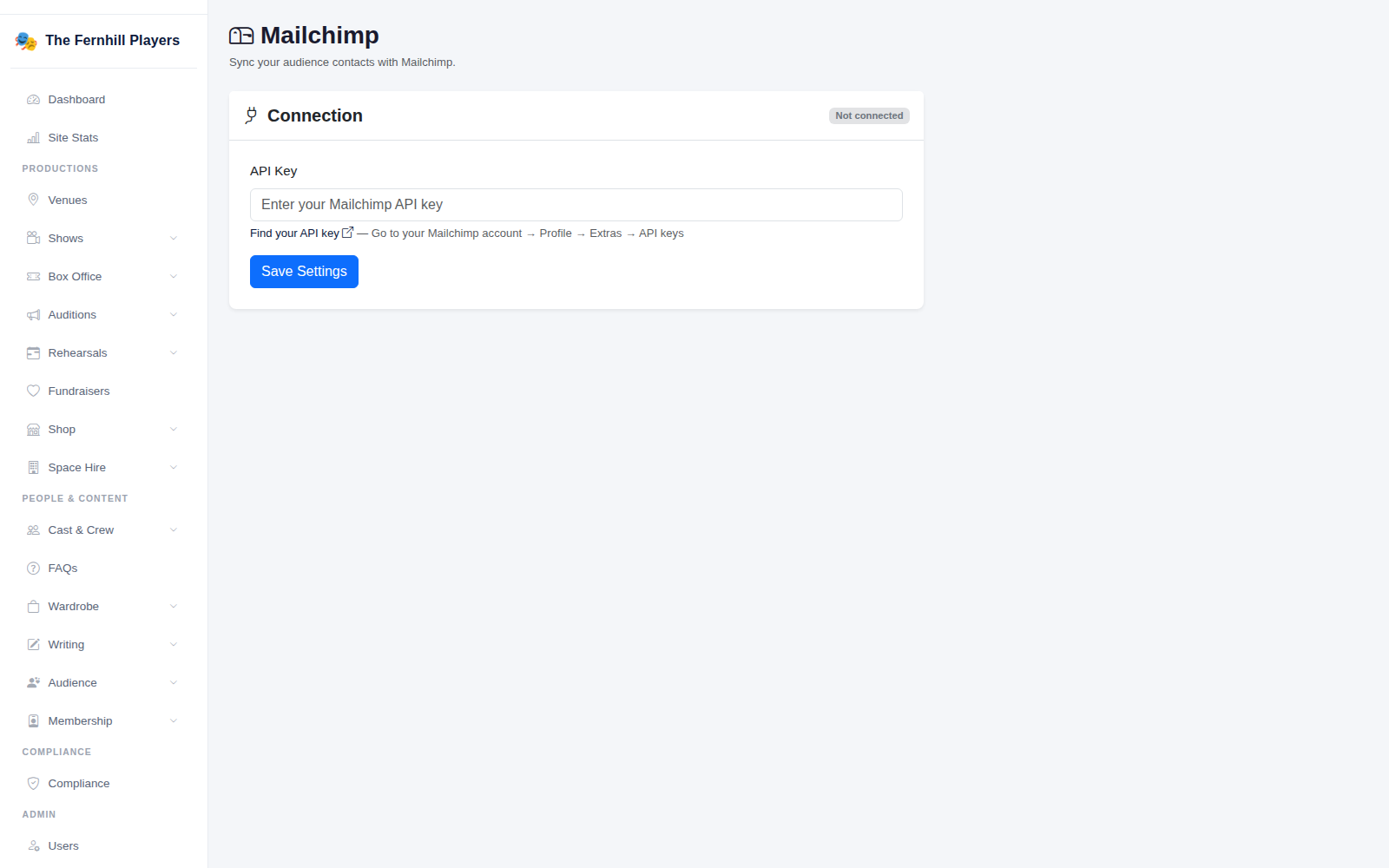
In Mailchimp, go to your Profile, then Extras > API keys, and create a key. Copy it. Treat it like a password: anyone with it can get into your Mailchimp account.
2. Connect it
In TheatreHQ go to Integrations > Mailchimp, paste the key into API Key and click Save Settings. Once it's connected, choose which Mailchimp Audience / List to use, and save again.
3. Bring your subscribers in
Click Import from Mailchimp. You'll see how many contacts are in the list and how many are new. The import runs in the background, so you can carry on working while it does.
- Names and phone numbers come across with each email address.
- Only people who are subscribed in Mailchimp are marked as opted in to marketing. Unsubscribed and cleaned contacts come in as not opted in, and their choice is recorded.
- Mailchimp tags that match your TheatreHQ tags are added to each person.
4. Send your audience to Mailchimp
To go the other way, use the export. By default only people who have opted in to marketing are sent, which is what you want for a newsletter list. You can also limit it to people with particular tags.
Disconnecting
If you stop using Mailchimp, click Disconnect. Your API key is removed from TheatreHQ, and everyone you imported stays in your audience list.
Tip: if you're moving from Mailchimp to TheatreHQ, import once, check the numbers match, then send your next newsletter from TheatreHQ. That keeps everything about your audience in one place.