Importing your audience list from a spreadsheet
Bring your existing mailing list into TheatreHQ from a spreadsheet, without creating duplicates or losing anyone's marketing choices.
If your mailing list lives in a spreadsheet, an old ticketing system or an email tool, you can bring it into TheatreHQ in one go. People are matched by email address, so importing the same person twice won't create a duplicate.
1. Download the template
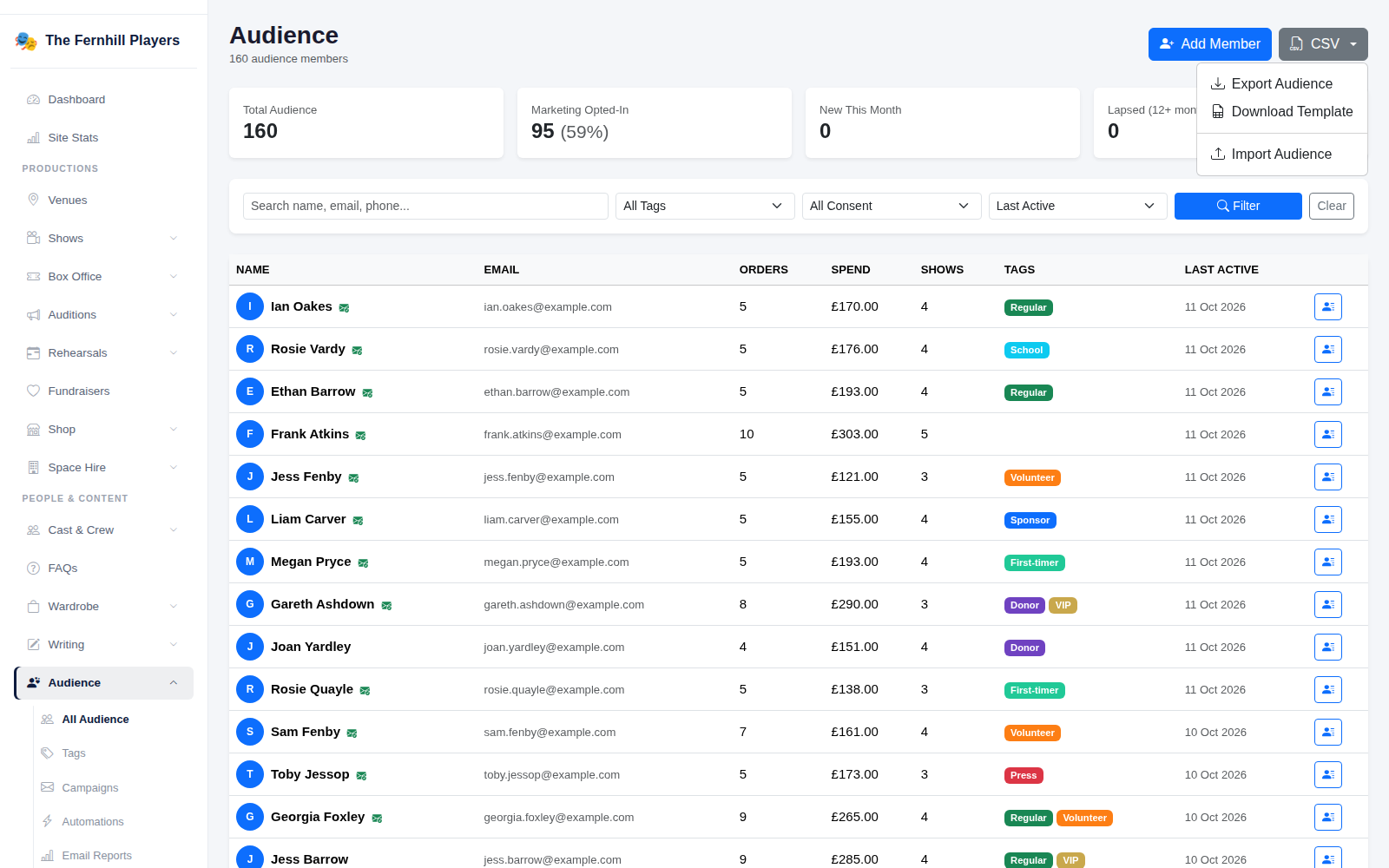
Go to Audience > All Audience, click CSV and choose Download Template. It's a spreadsheet with the right column headings and two example rows. Open it in Excel, Google Sheets or Numbers.
2. Fill it in
Copy your people into the template under the headings. Only email is required; everything else is optional:
- first_name and last_name
- phone
- address_line1, address_line2, town, county and postcode
- marketing_opt_in: 1 if the person has agreed to marketing emails, 0 or blank if not
Be careful with marketing_opt_in. Only put 1 for people who actually agreed to hear from you, for example by ticking a box when they booked or joined. If you're not sure, leave it as 0. Anyone can still be emailed about tickets they've bought; marketing emails only go to people who opted in.
Delete the two example rows, then save the file as CSV. In Excel that's File > Save As and CSV UTF-8.
3. Import it
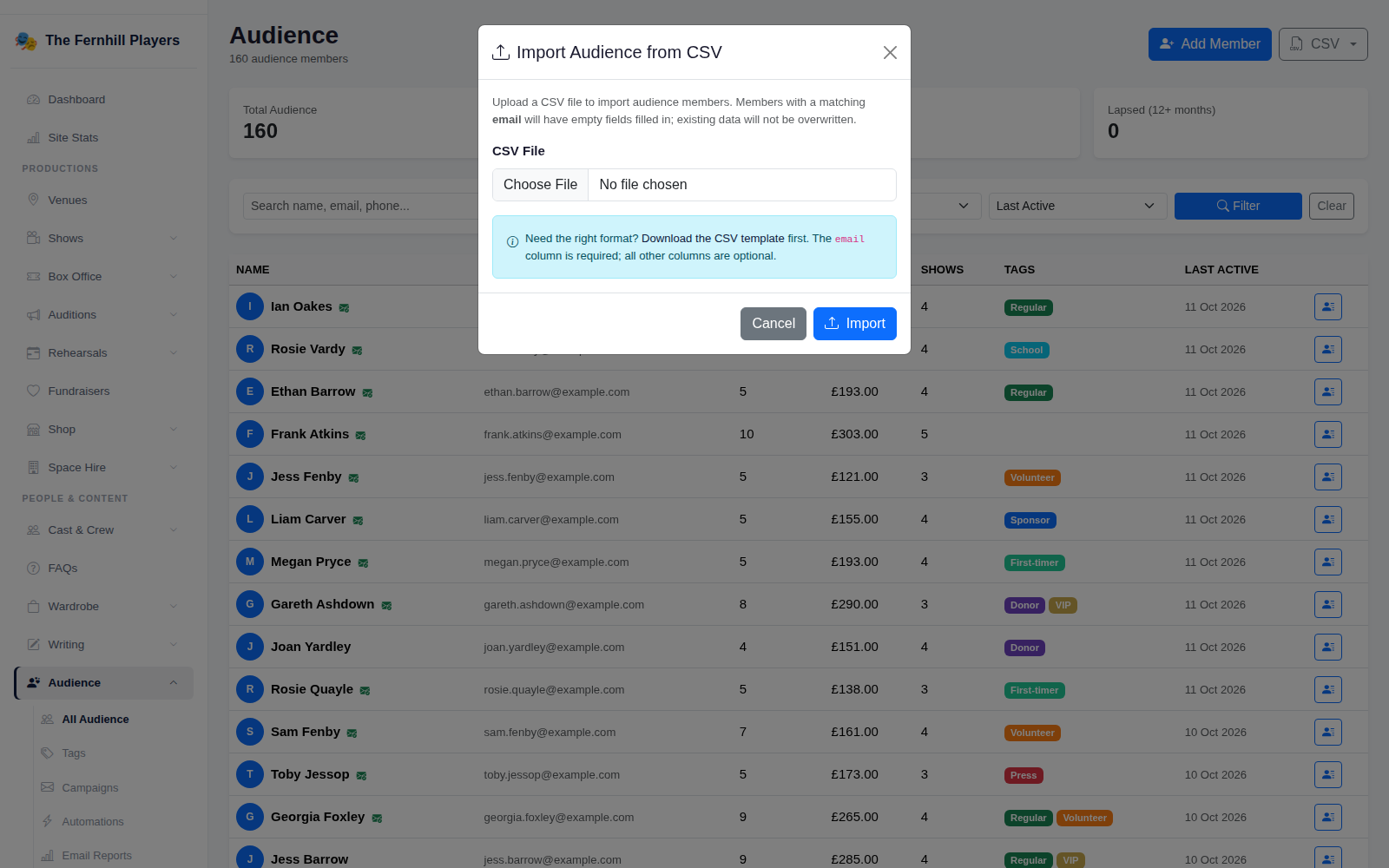
Back on All Audience, click CSV, then Import Audience. Choose your file and click Import.
4. Check the result
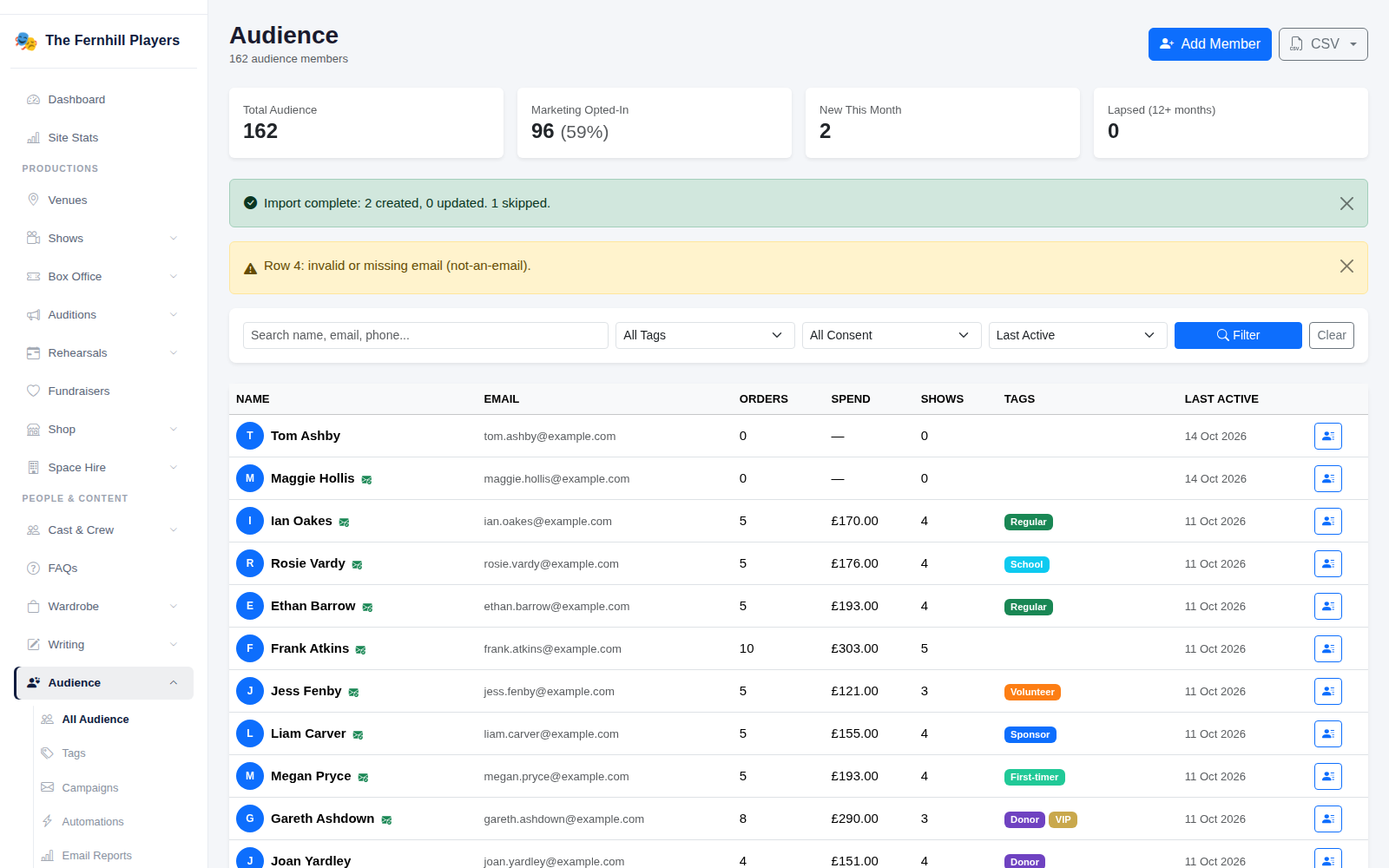
A message tells you how many people were created, how many existing people were updated, and how many rows were skipped, with the reason for each, such as a missing or invalid email address. Fix those rows and import them again if you need to.
If someone is already in your audience, the import only fills in details that are empty. It never overwrites what you already have, and it won't take away anyone's marketing opt-in.
Tip: once they're in, tag groups of people, such as volunteers or press, so you can find and email them easily. See Tagging your audience.