Connecting other tools with webhooks
Send ticket sales, bookings, memberships and more to other tools the moment they happen, using webhooks.
Webhooks let TheatreHQ tell another system the moment something happens: a ticket is sold, a membership is renewed, someone joins your mailing list. You might use them to add every sale to a spreadsheet, post new bookings into a group chat, or keep another system up to date. This is a more technical feature; if you're not sure you need it, you probably don't.
1. Get an address to send to
A webhook needs somewhere to send its messages: an address (URL) provided by the tool you're connecting to. Automation services such as Zapier and Make can give you one, and so can your own scripts if you have someone technical in the society. The address must start with https://.
2. Add the webhook
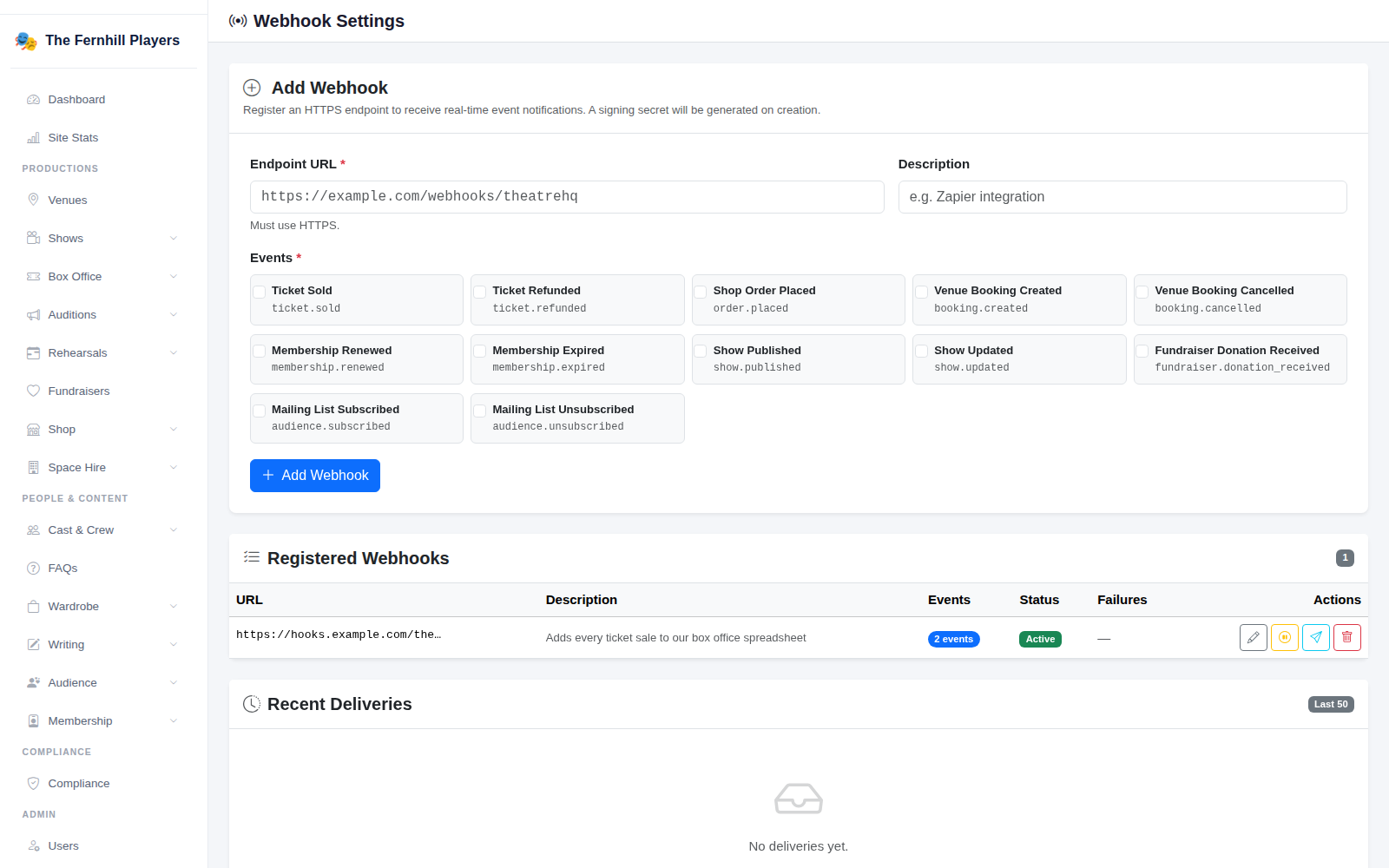
Go to Integrations > Webhooks. Paste the address into Endpoint URL, add a Description so you remember what it's for, and tick the Events it should hear about:
- Ticket Sold and Ticket Refunded
- Shop Order Placed
- Venue Booking Created and Venue Booking Cancelled
- Membership Renewed and Membership Expired
- Show Published and Show Updated
- Fundraiser Donation Received
- Mailing List Subscribed and Mailing List Unsubscribed
Click Add Webhook. A signing secret is created for it. Each message is signed with that secret, so the system receiving it can check it really came from you. Keep the secret private, like a password.
3. Check it's working
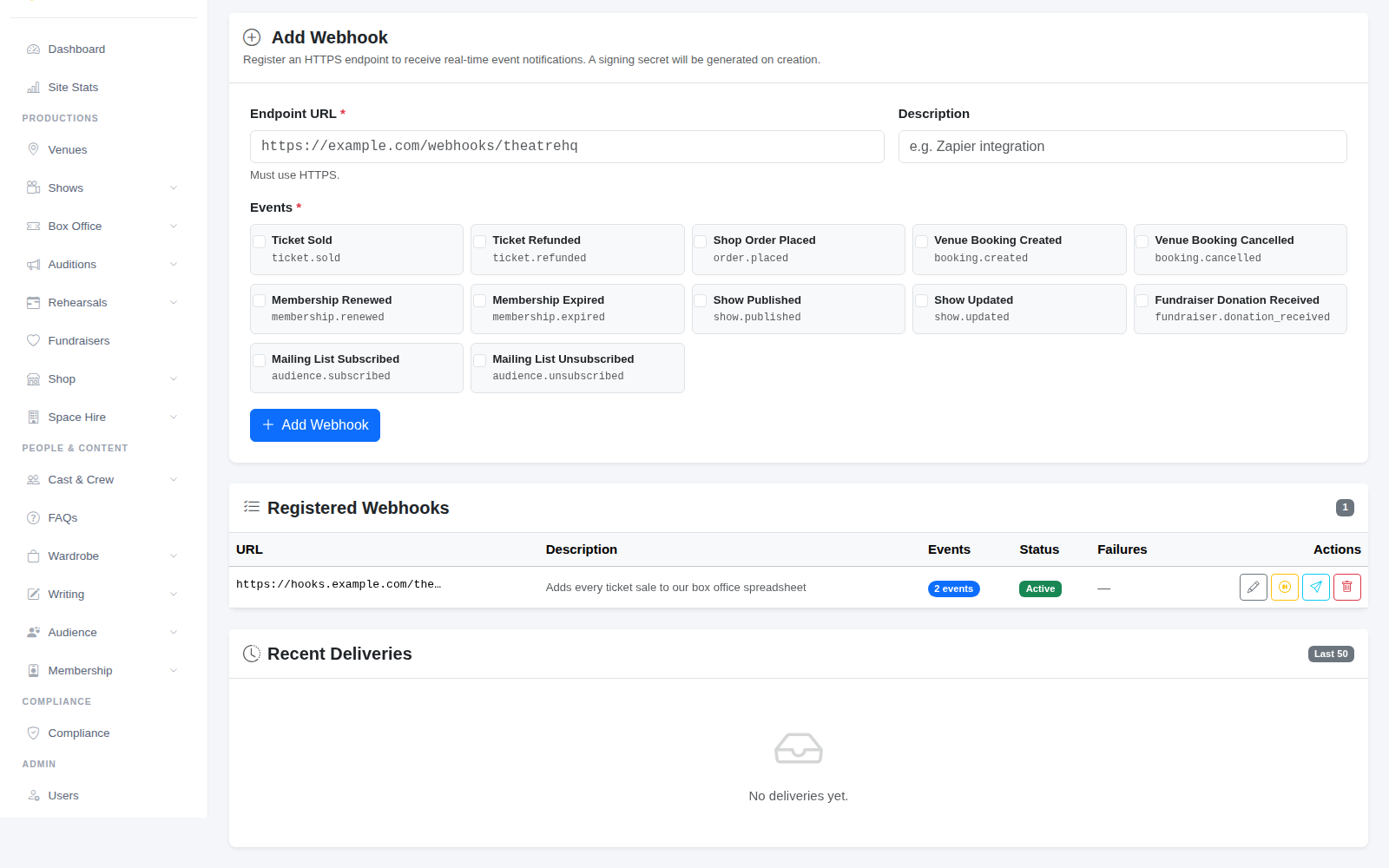
Your webhooks are listed under Registered Webhooks, with the number of events each one sends, whether it's active and how many deliveries have failed. Use the buttons on the right to edit one, switch it off, send a test delivery to check the other end is listening, or delete it.
Recent Deliveries shows the last 50 messages sent, and whether each one arrived. If deliveries keep failing, the most likely cause is a wrong or expired address in the other tool.
Keep personal data in mind
Some events include people's names and email addresses. Only send them to tools you trust, and remember they then hold a copy of that data too. Mention them in your privacy notice as one of the places you share data.
Tip: start with one event, such as Ticket Sold, and check it arrives the way you expect before adding more.