Cash sales, pay at the door and free (complimentary) tickets
How to record tickets sold in person, hold seats for people who will pay at the door, give away tickets as free complimentary comps with a reason, and credit a sale to a cast member.
Not every ticket is sold online. Someone buys at the box office, a cast member hands over cash from their family at rehearsal, or you want to give away tickets to the press or a sponsor. All of these are recorded as a cash sale, so your seating plan, ticket list and takings stay right. This guide covers the lot: taking money at the desk, holding seats for people who will pay at the door, giving free (complimentary) tickets, and crediting a sale to a cast member.
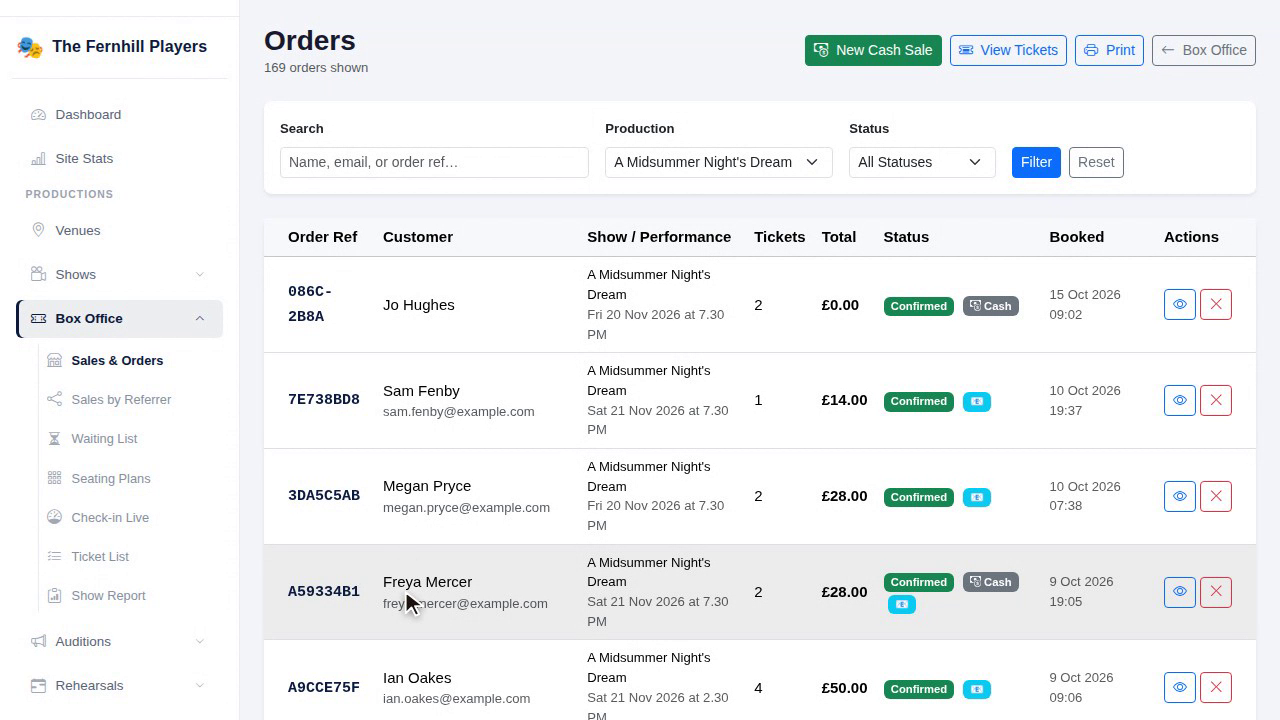
1. Start a cash sale
Go to Box Office then Sales & Orders and click New Cash Sale.
2. Choose the performance and seats
Choose the Production, then click the Performance. Each one shows how many seats are still available.
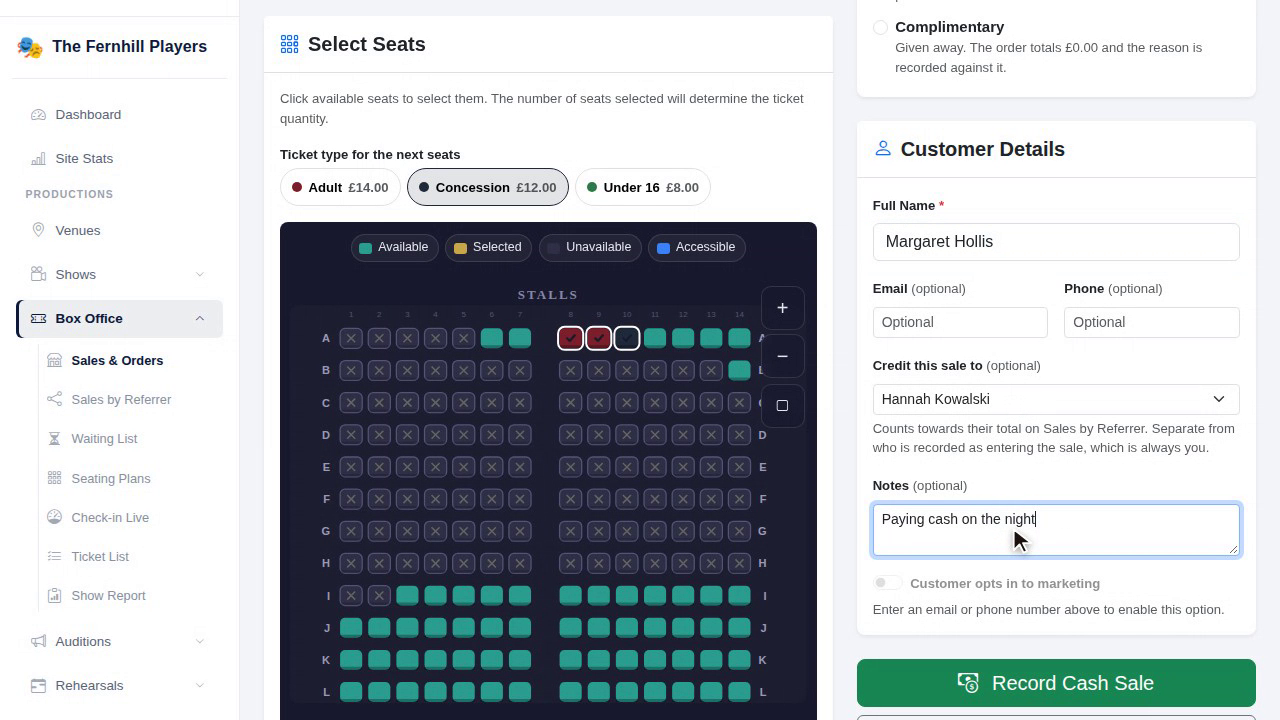
If the show uses a seating plan, pick a ticket type under Ticket type for the next seats, such as Adult or Concession, then click the seats on the plan. You can switch ticket type between seats, so one order can mix adults and concessions. Seats that are already sold are crossed out. If the show doesn't use a seating plan, you enter how many of each ticket type you need instead. Add ons, such as programmes, can be added in the same way if you sell them.
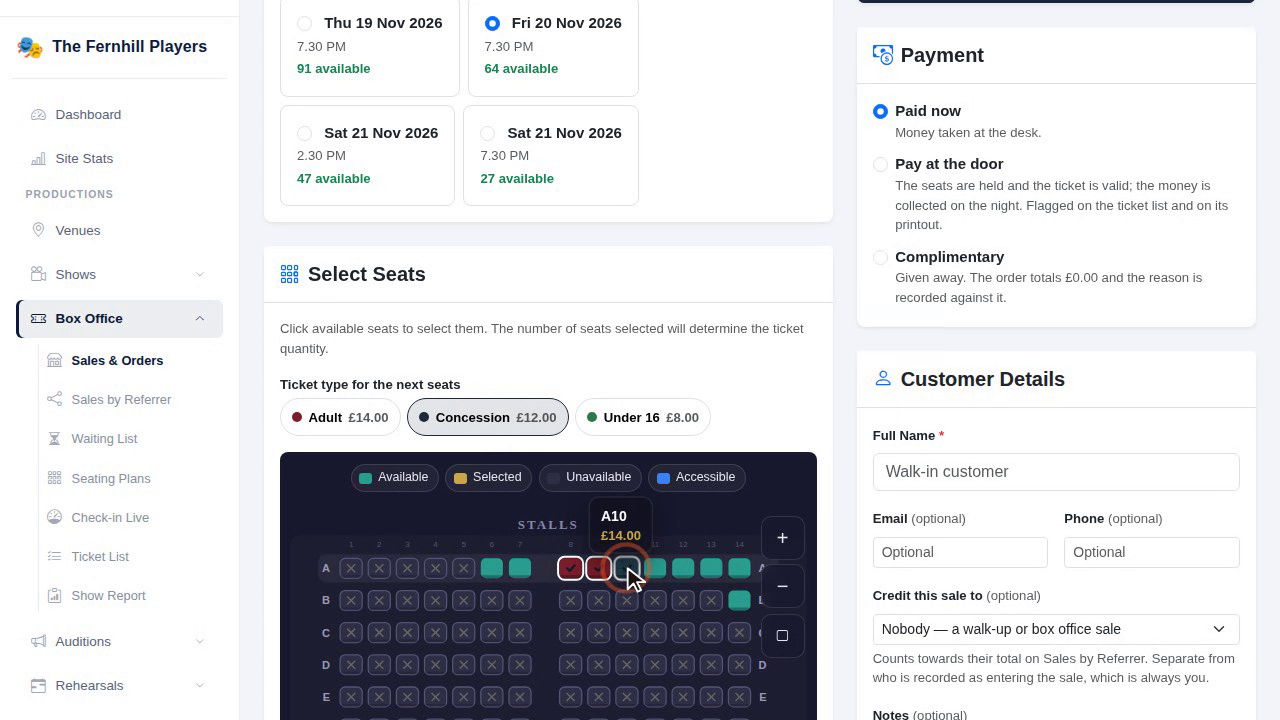
The Order Total on the right updates as you go.
3. Choose how it's being paid
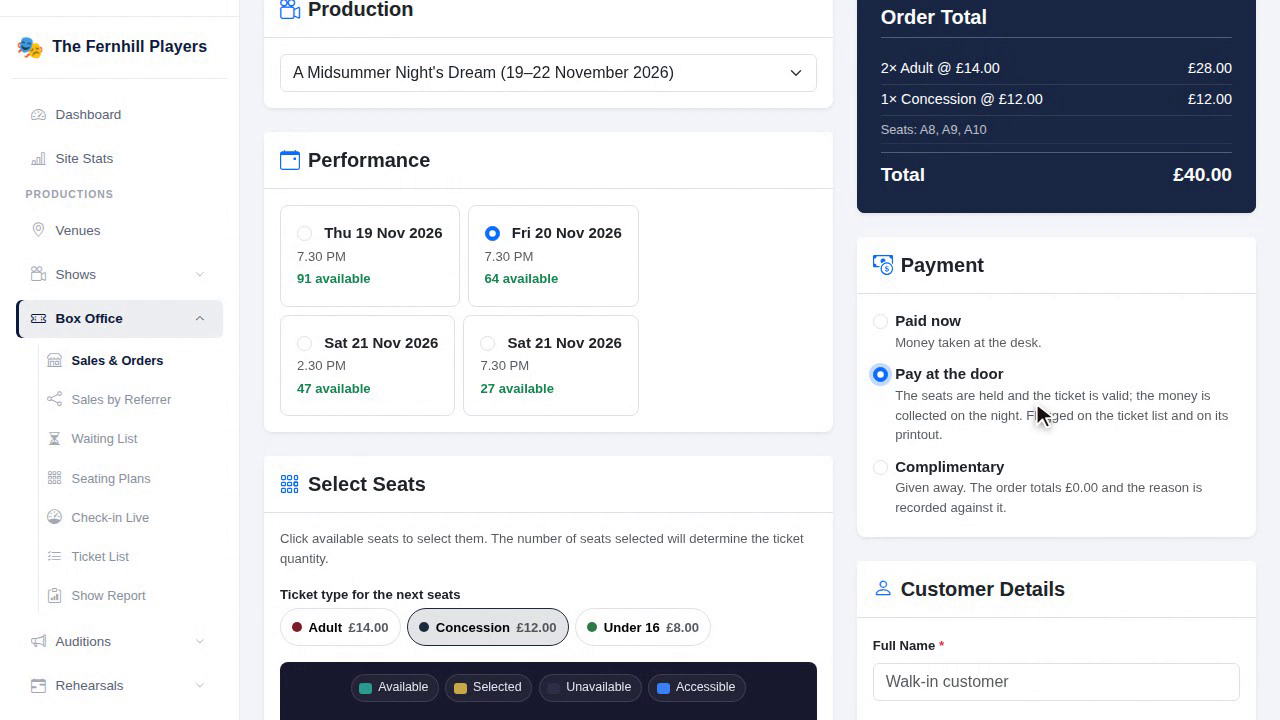
Under Payment there are three choices:
- Paid now: you've taken the money at the desk, in cash or on a card machine.
- Pay at the door: the seats are held and the tickets are valid, but the money is collected on the night. Handy for phone bookings and regulars who always pay when they arrive.
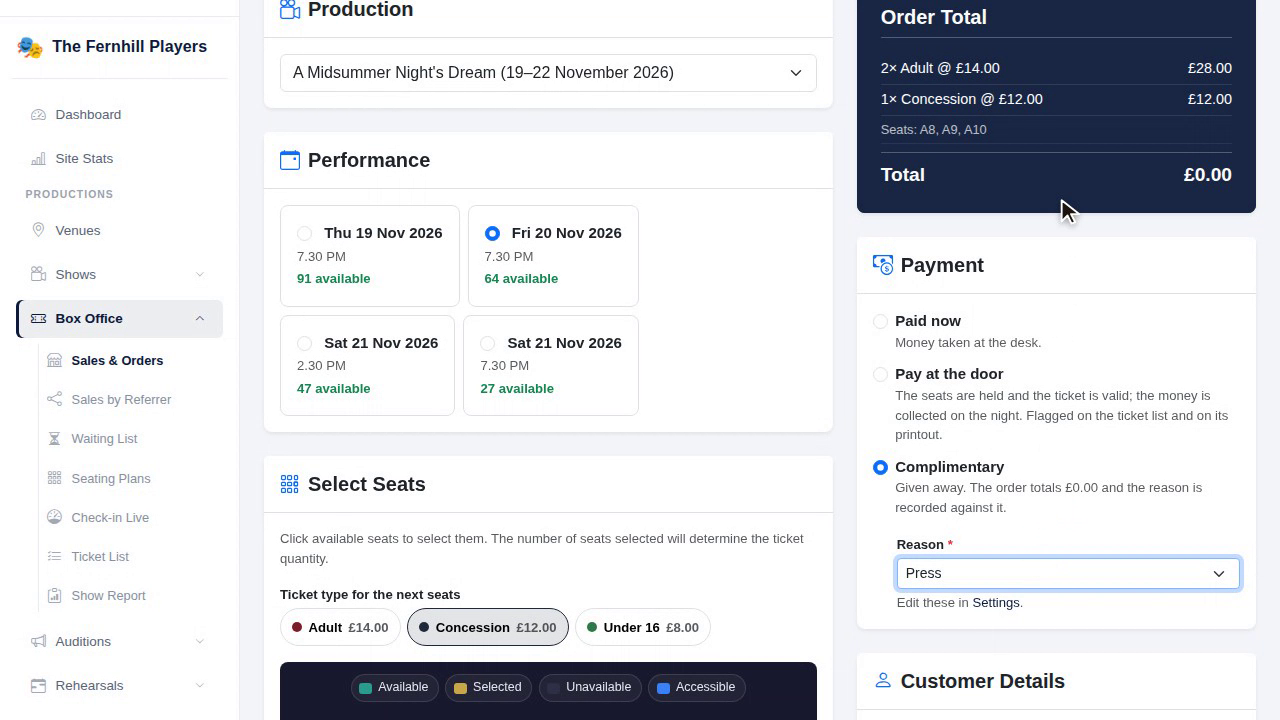
- Complimentary: free tickets you give away. The order totals £0.00 and you choose a reason.
Giving away free tickets (comps)
To give away tickets, choose Complimentary and pick a Reason, for example Press, Reviewer, Adjudicator, Guest of the society, Volunteer, Sponsor, Cast & crew, or Prize or raffle winner. A reason is required, so you always know where your free tickets went.
Every line on a complimentary order is priced at nothing, and so is any booking fee, so free tickets never show up as money you didn't take in your takings and reports.
4. Add the customer and credit the sale
Enter the customer's Full Name. Their email and phone are optional. If you add either, you can switch on Customer opts in to marketing when they've asked to hear about future shows.
If someone else sold these tickets, such as a cast member selling to family and friends, choose them under Credit this sale to. The sale then counts towards their total on Sales by Referrer, the same as tickets sold through their own booking link. This is separate from who entered the sale, which is always recorded as you. Leave it on Nobody for a walk up or box office sale.
Add any Notes you need, such as "paid by cheque" or "collecting on the night", then click Record Cash Sale.
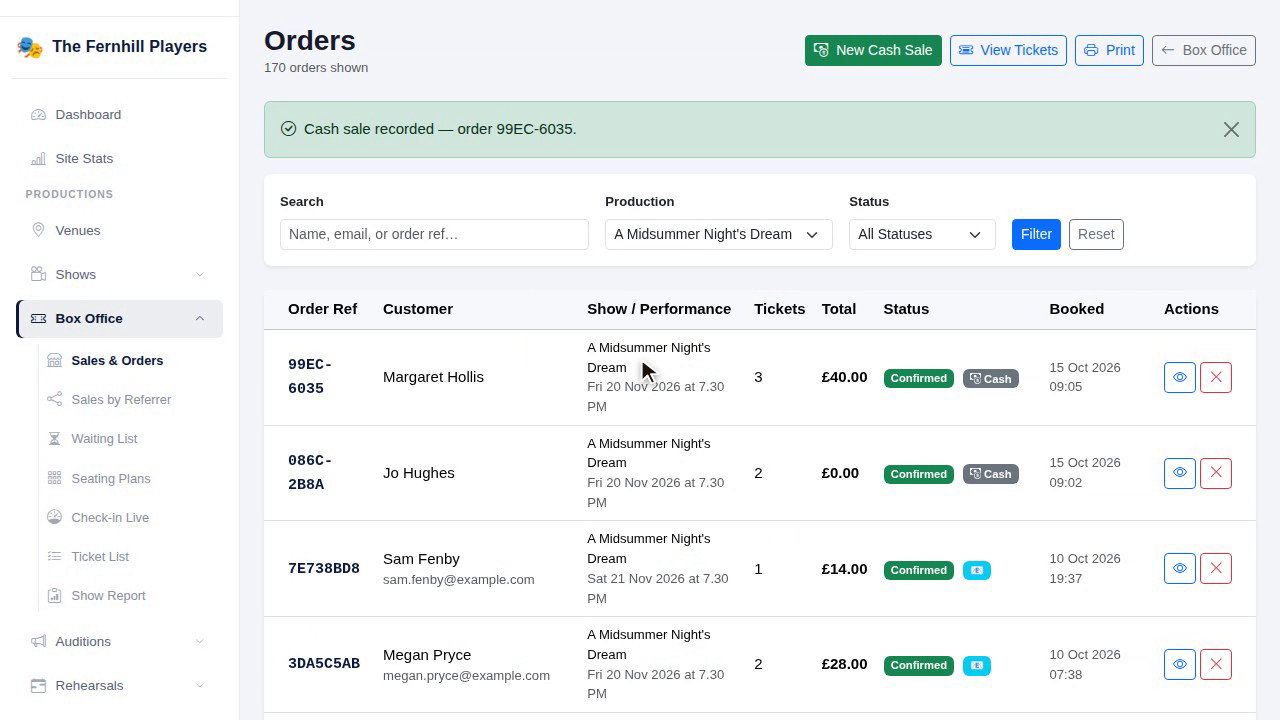
The order appears straight away in Sales & Orders with a Cash badge, and the seats are taken off sale. TheatreHQ doesn't email tickets for a cash sale; the customer is on your ticket list instead.
5. On the night: the ticket list
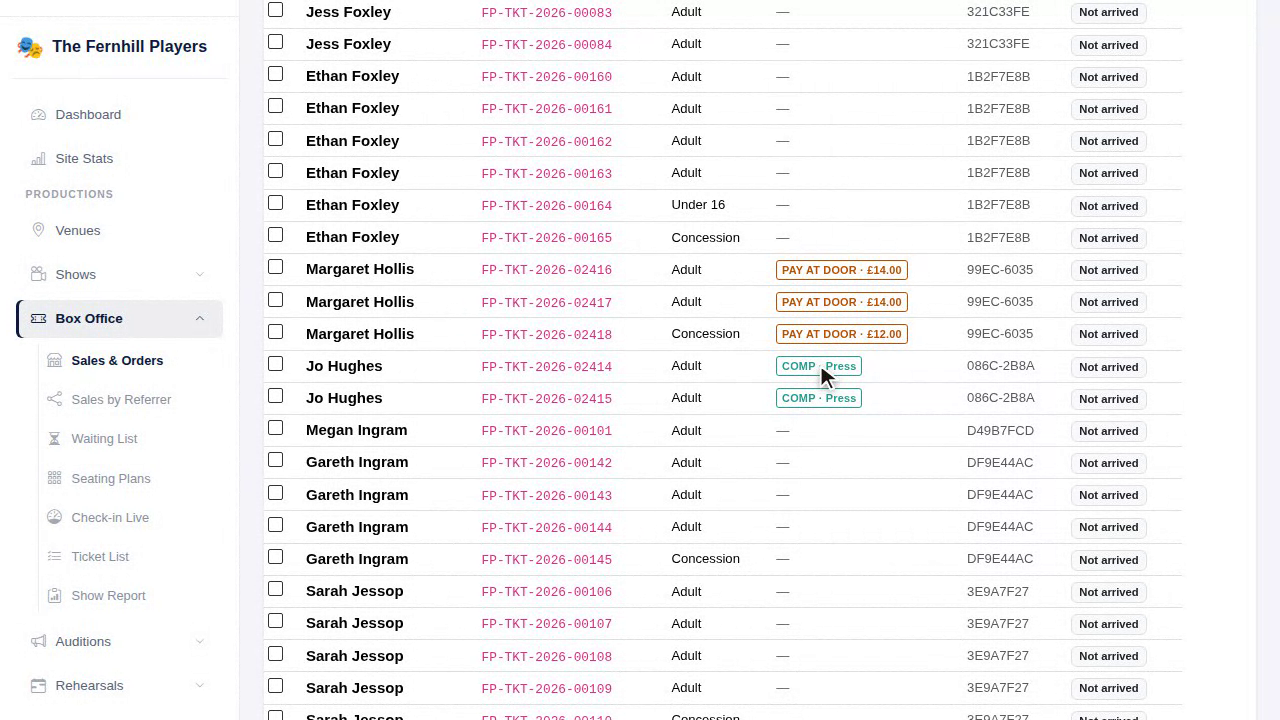
Go to Box Office then Ticket List and choose the performance. The line at the top tells you how many tickets are still to pay at the door and how much to collect, and how many are complimentary.
Each ticket still to be paid for is marked PAY AT DOOR with the amount, and free tickets are marked COMP with the reason, so whoever is on the door knows exactly who to take money from and who is a guest. Click Print for a paper copy; the markings are designed to read clearly on a black and white printer.
If you scan tickets at the door, see Checking tickets at the door.
6. See who sold what
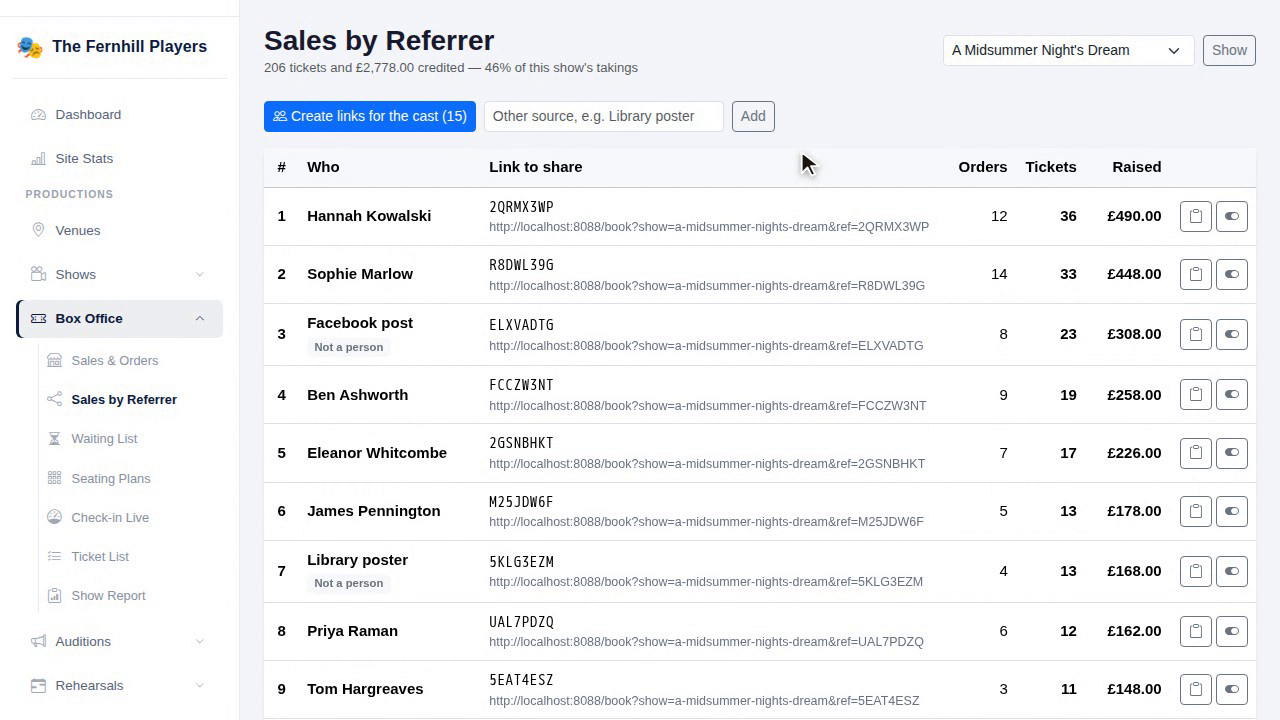
Go to Box Office then Sales by Referrer. Every cash sale you credited to someone is included in their orders, tickets and total, alongside what they sold through their own link. It's a good way to thank your best sellers. There's more in Referral links for your cast.
Changing the reasons for free tickets
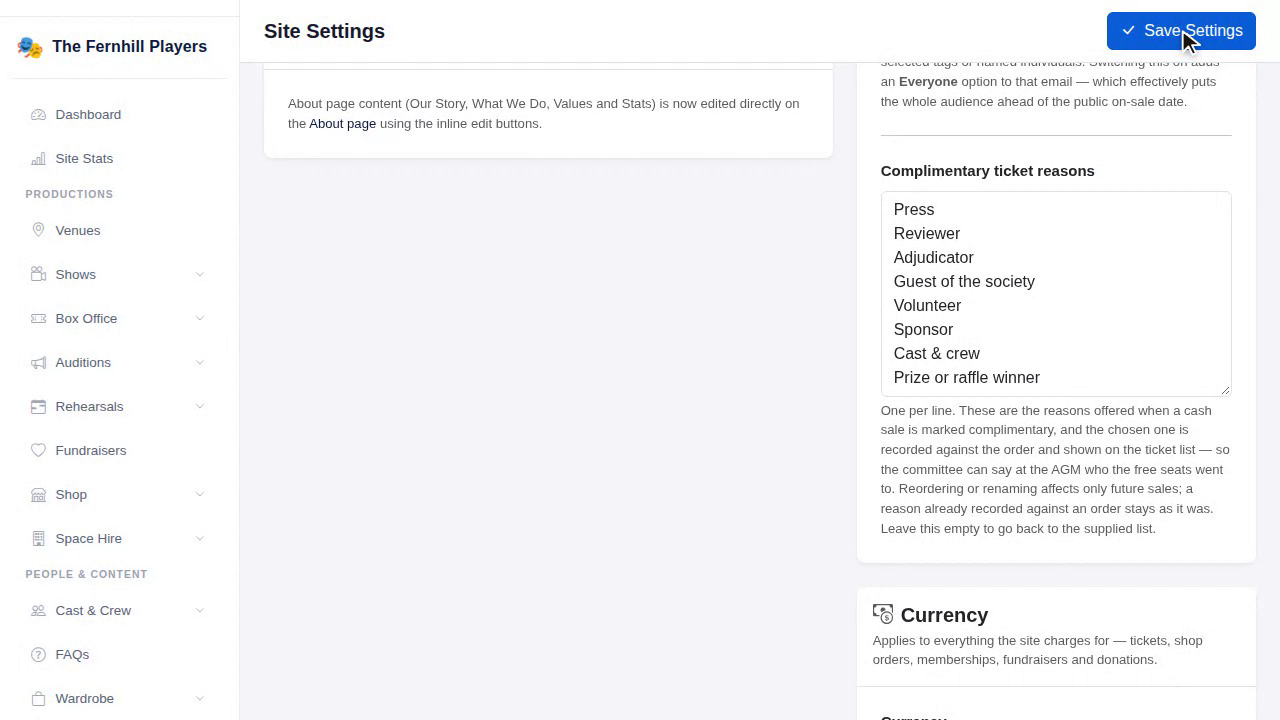
Go to Settings and find Complimentary ticket reasons in the Box Office section. Put one reason on each line, then click Save Settings. Reasons already recorded against past orders stay as they were.
Good to know
- Cash sales, pay at the door orders and comps all show in Sales & Orders alongside online orders, so your totals add up.
- Use the notes for anything the door team needs, such as a wheelchair space or who is collecting the tickets.
- For the basics of selling on the door, see Selling tickets on the door.