Show week checklist: from the dress rehearsal to the post-show report
Everything to do in TheatreHQ in show week, from filling the last seats and briefing front of house to watching the house fill up and following up afterwards.
Show week is busy enough without the box office adding to it. This checklist goes through what to do in TheatreHQ, and when, so front of house runs smoothly and you can enjoy the show. Each step links to a fuller guide if you need it.
The week before
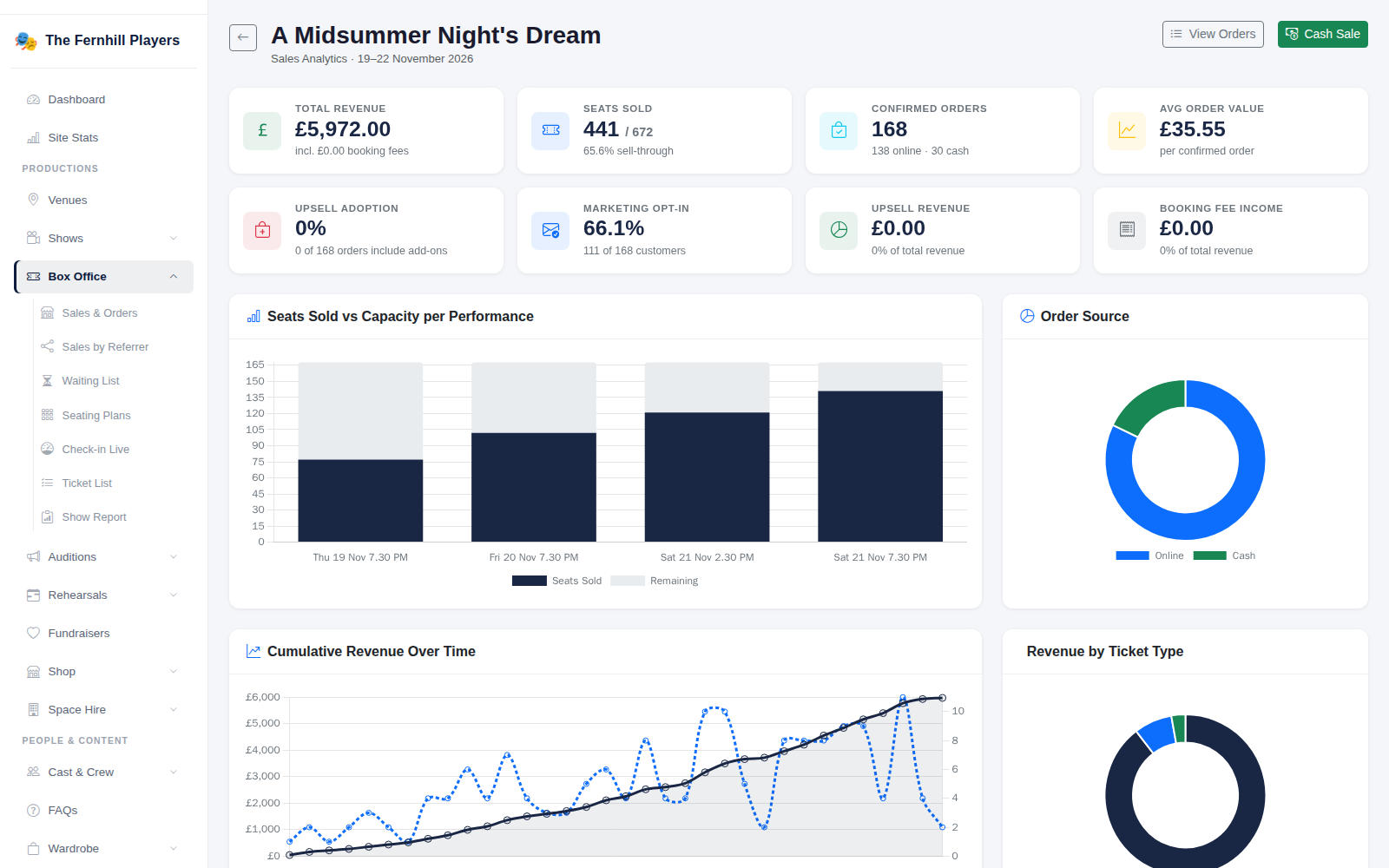
1. Check how sales are going
Open your show under Box Office to see seats sold for each performance. If one night is lagging, that's the one to push on social media this week (see Checking how ticket sales are going).
2. Nudge the people who haven’t booked
Under Audience > Automations, the Show Reminder email goes to people on your list who've agreed to hear from you but haven't bought tickets yet. People who've already booked don't get it, so it's safe to switch on (see Setting up automated emails).
3. Tell ticket holders what they need to know
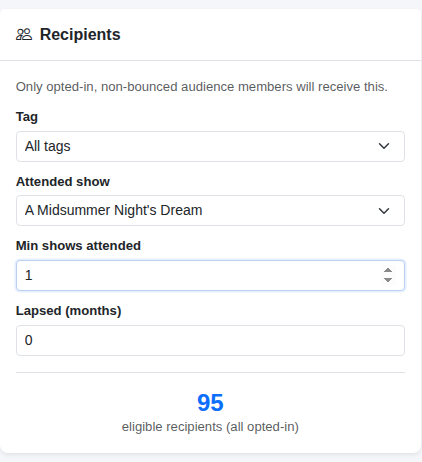
Parking, the start time, the bar opening early, an age warning: send a short campaign with Attended show set to this show, which reaches everyone who's booked and agreed to emails (see Sending an email campaign).
Before doors open
4. Get the scanners ready
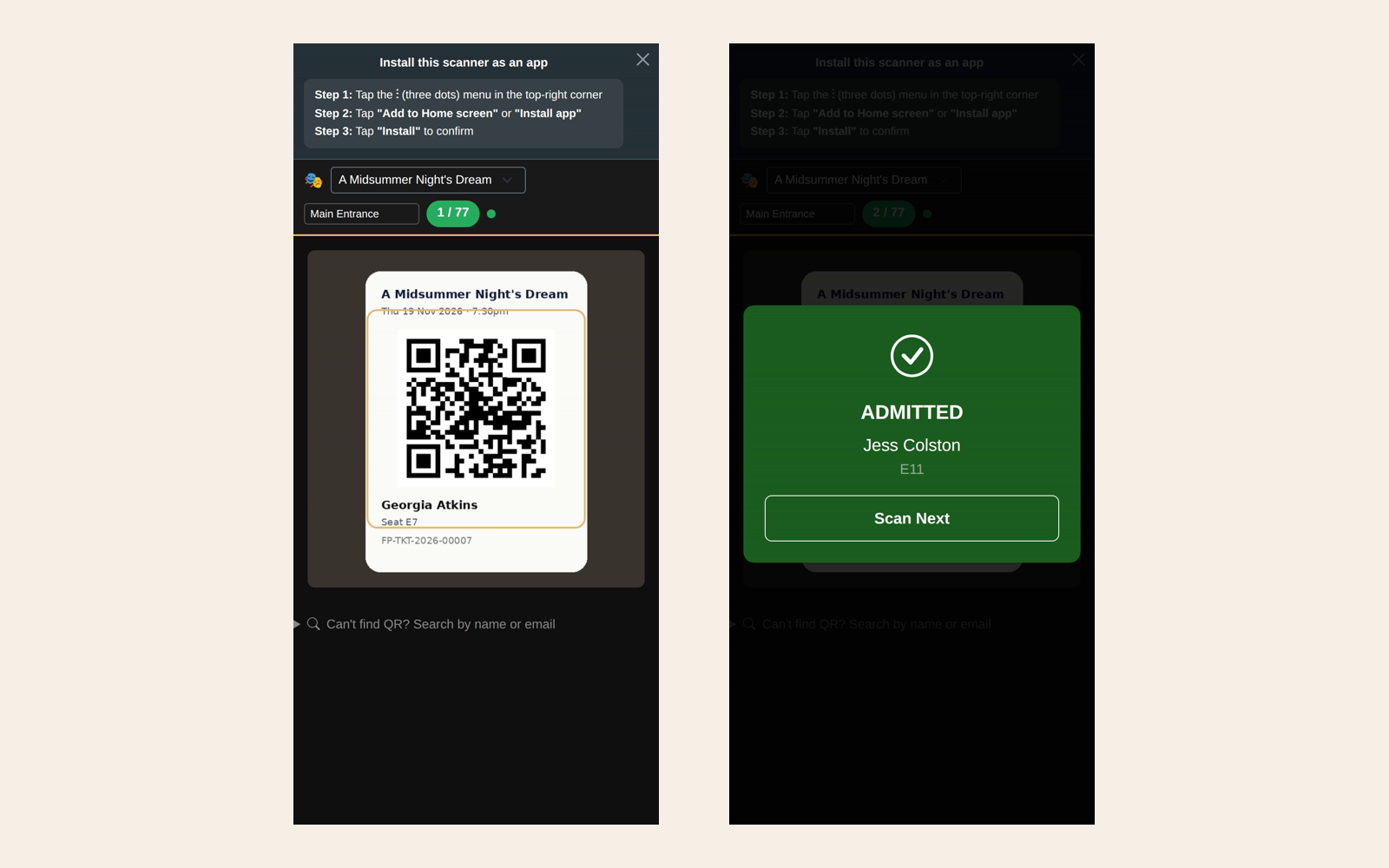
On each phone your door team will use, open the scanner, install it to the home screen, choose the performance and give each entrance a name, such as Main Entrance or Side Door. Scan one ticket as a test (see Checking tickets in at the door).
5. Print the ticket list
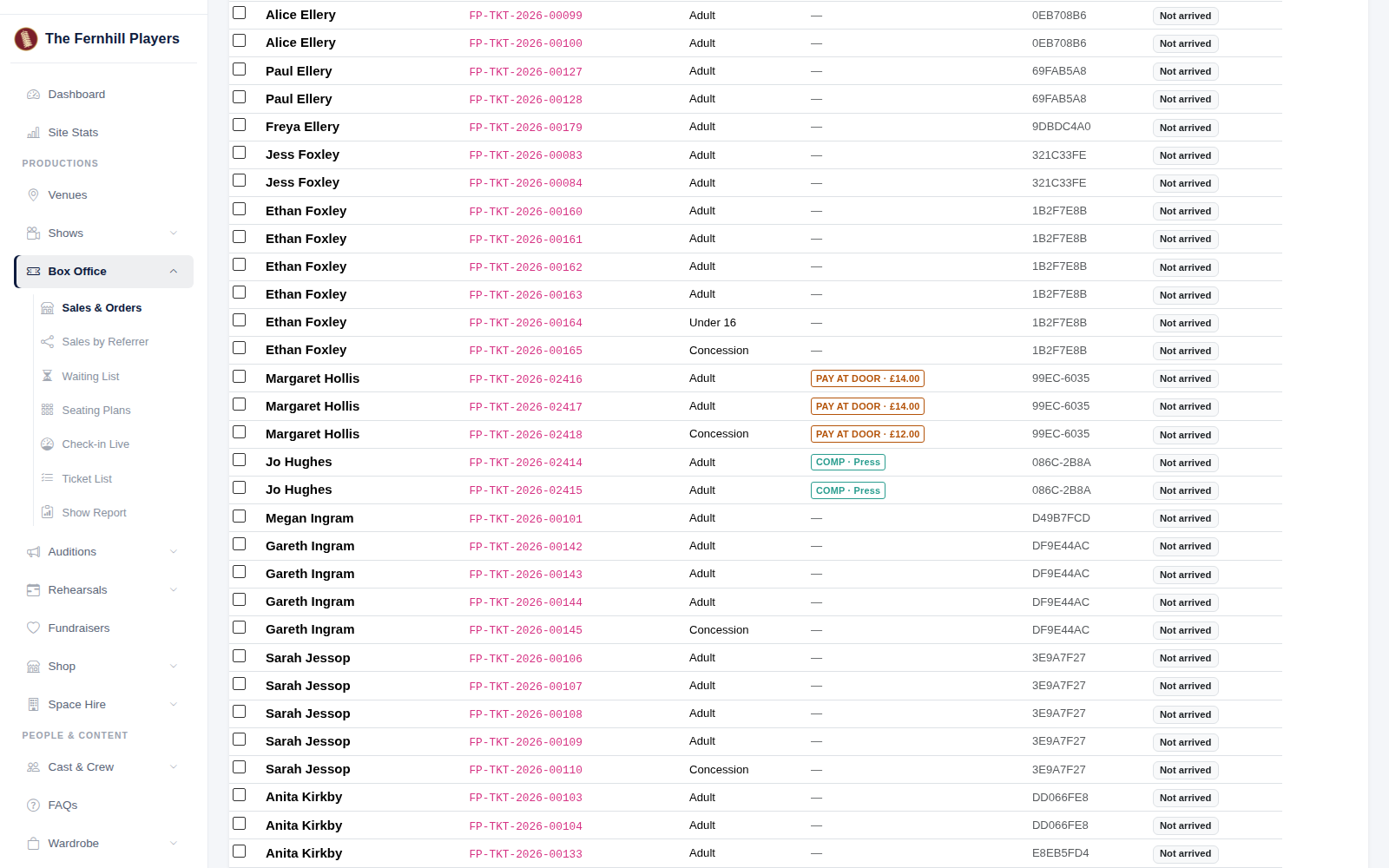
Print the Ticket List for the performance, sorted by surname, as a back-up for flat batteries and lost tickets. It also shows who's paying on the door, how much to collect and who has a complimentary ticket (see Using the ticket list on show night).
If you're selling programmes or interval drinks with tickets, give a copy to the bar too (see Selling programmes, interval drinks and other extras).
On the night
6. Sell on the door
For walk-ups, use New Cash Sale on a laptop or tablet. Pick the seats, take the money and the sale is counted with everything else, so you never sell the same seat twice (see Cash sales, pay at the door and free tickets).
7. Watch the house fill up
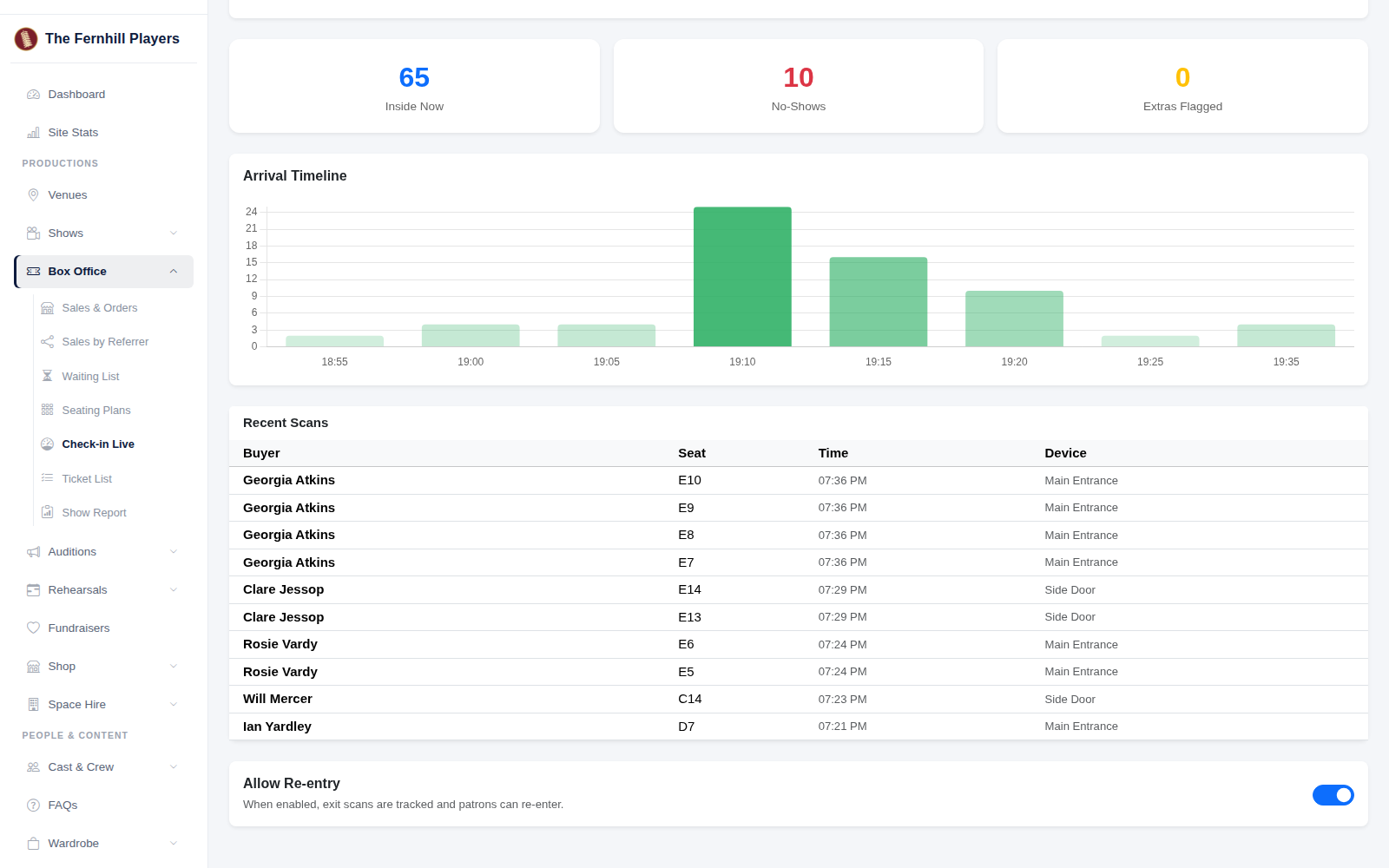
Your house manager can keep Box Office > Check-in Live open on a phone or laptop. It shows how many people are in out of the tickets sold, how many are still to arrive, and the most recent scans at each door, updating every ten seconds.
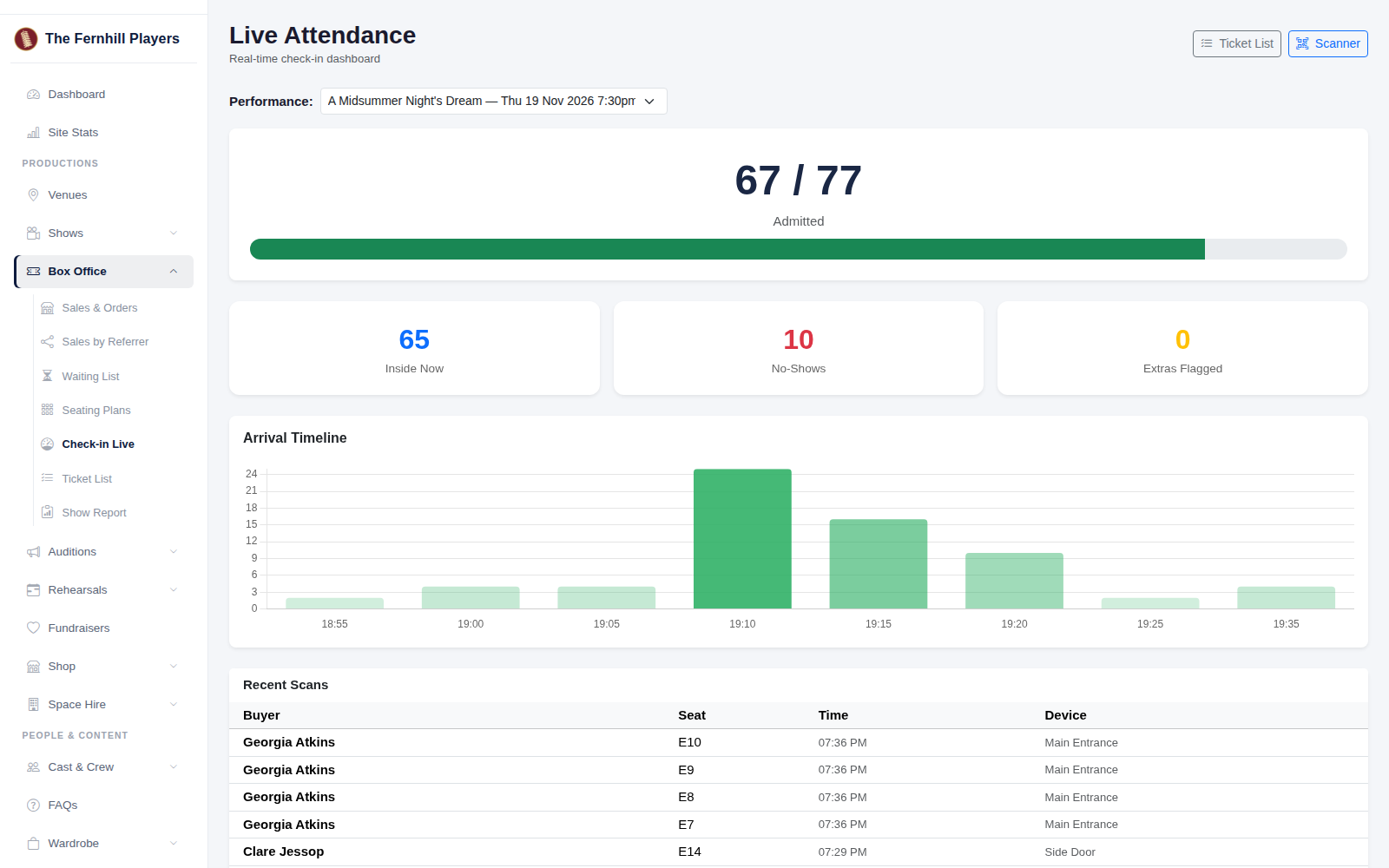
The Arrival Timeline shows when people came through the doors. If a lot of tickets are still to arrive at curtain-up, it might be worth holding for five minutes; the timeline from previous nights tells you whether your audience tends to cut it fine.
8. The interval
If people pop out at the interval, switch on Allow Re-entry at the bottom of the page. The scanner then records people going out and coming back in, and Inside Now shows how many are in the building, which is handy if you ever need to count heads in a hurry.
After the show
9. Follow up the no-shows
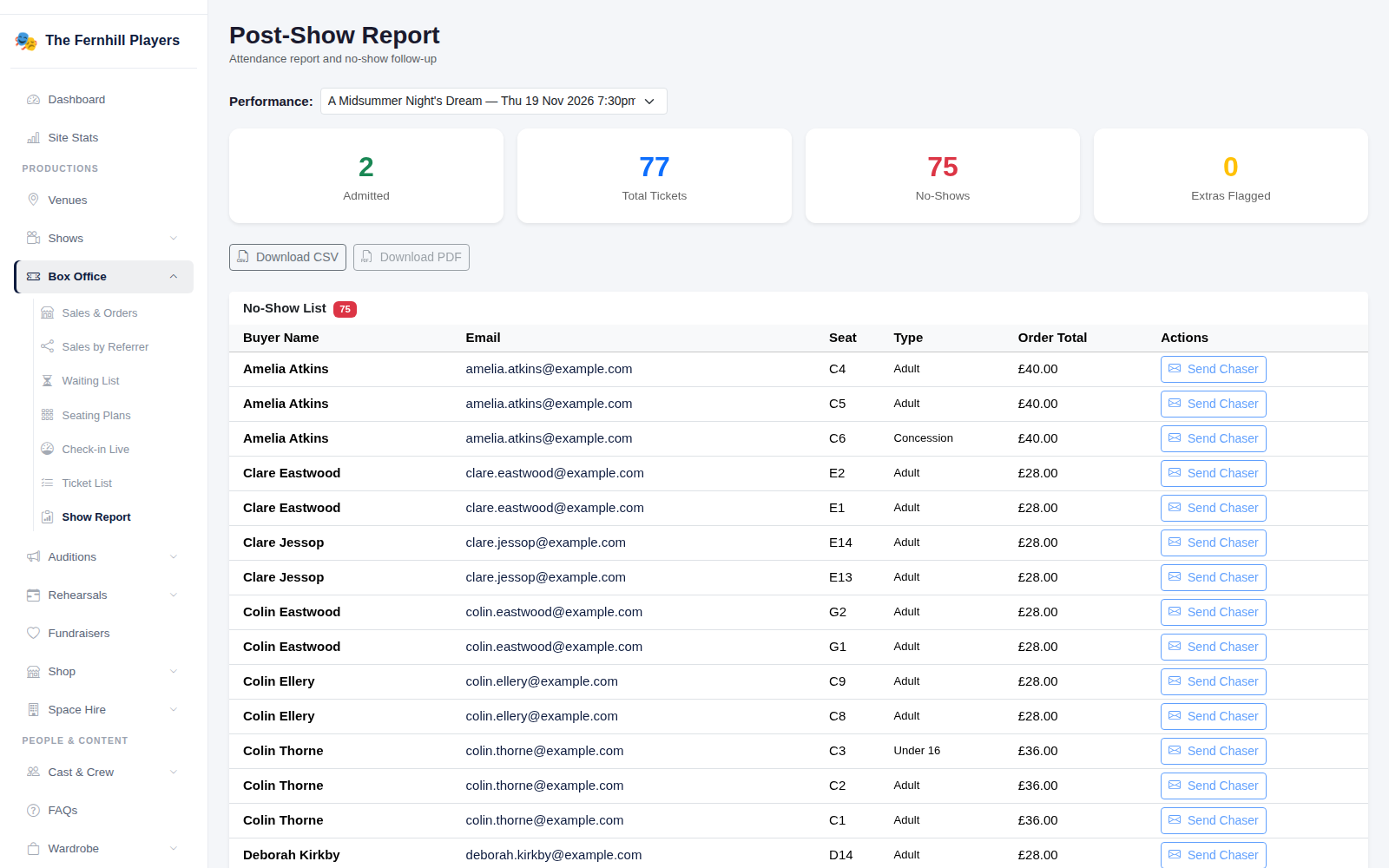
Box Office > Show Report lists everyone who booked but didn't come. A friendly note costs nothing, and if someone was ill you can offer to move them to another night (see Moving a booking to another performance, and refunds).
10. Ask for reviews
Switch on the Post-Show Review Request automation, and the day after each performance ticket holders who've opted in are asked to leave a review while the show is fresh in their minds.
Tip: after the last night, look at how each performance sold and when people booked. It's the best guide you'll get to which nights and matinees to put on next time.