Getting your data out: exports and downloads
Your society's data is yours. Here's where to download your audience, members, shows, reports and an individual's data.
Everything you put into TheatreHQ belongs to your society, and you can take a copy whenever you like: for the treasurer, for an AGM report, for a backup of your own, or to answer someone's request for their data. Most lists have a CSV button that downloads a spreadsheet you can open in Excel, Google Sheets or Numbers.
Your audience
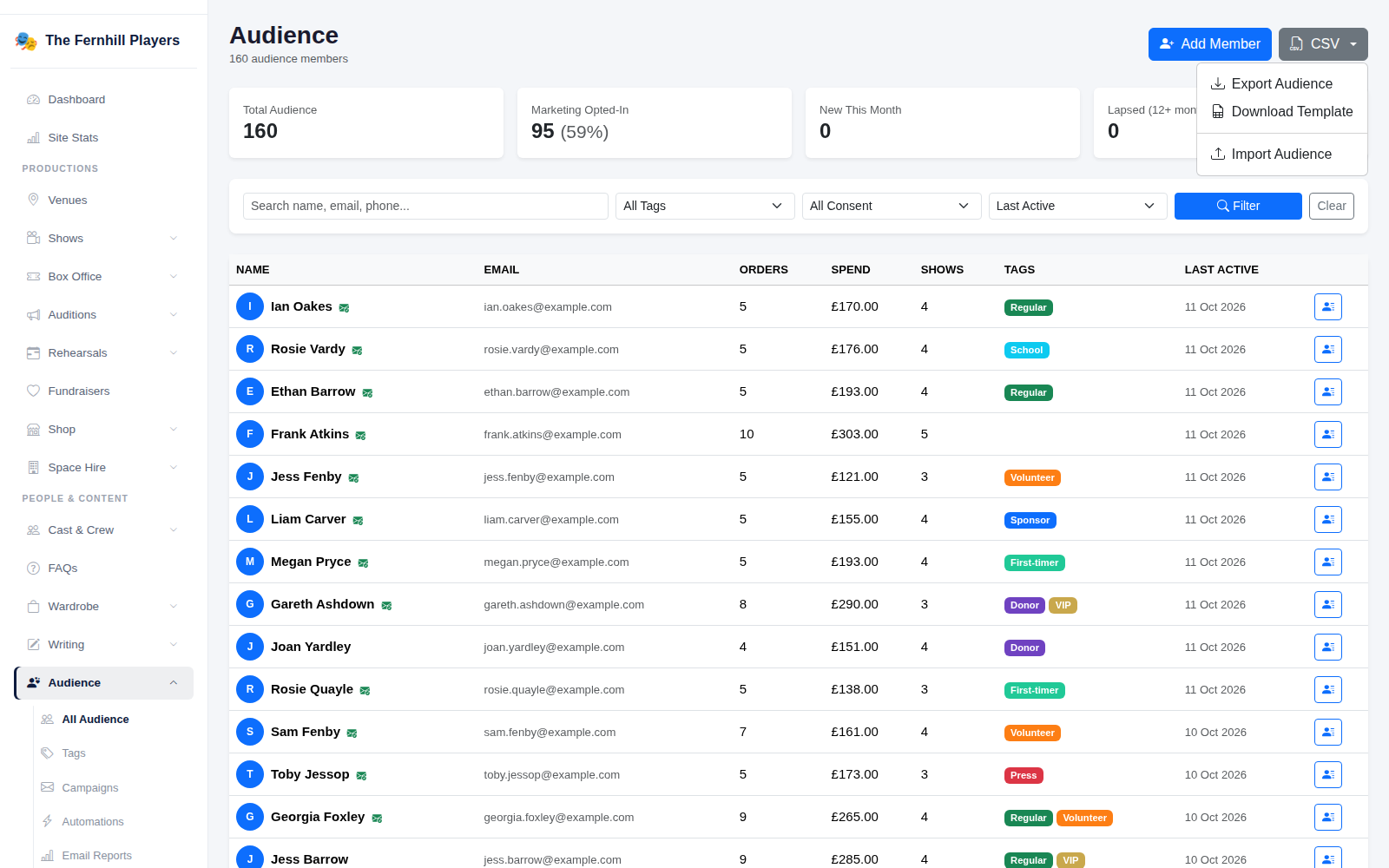
Go to Audience > All Audience, click CSV and choose Export Audience. It downloads everyone, with their contact details and marketing choices.
Your members
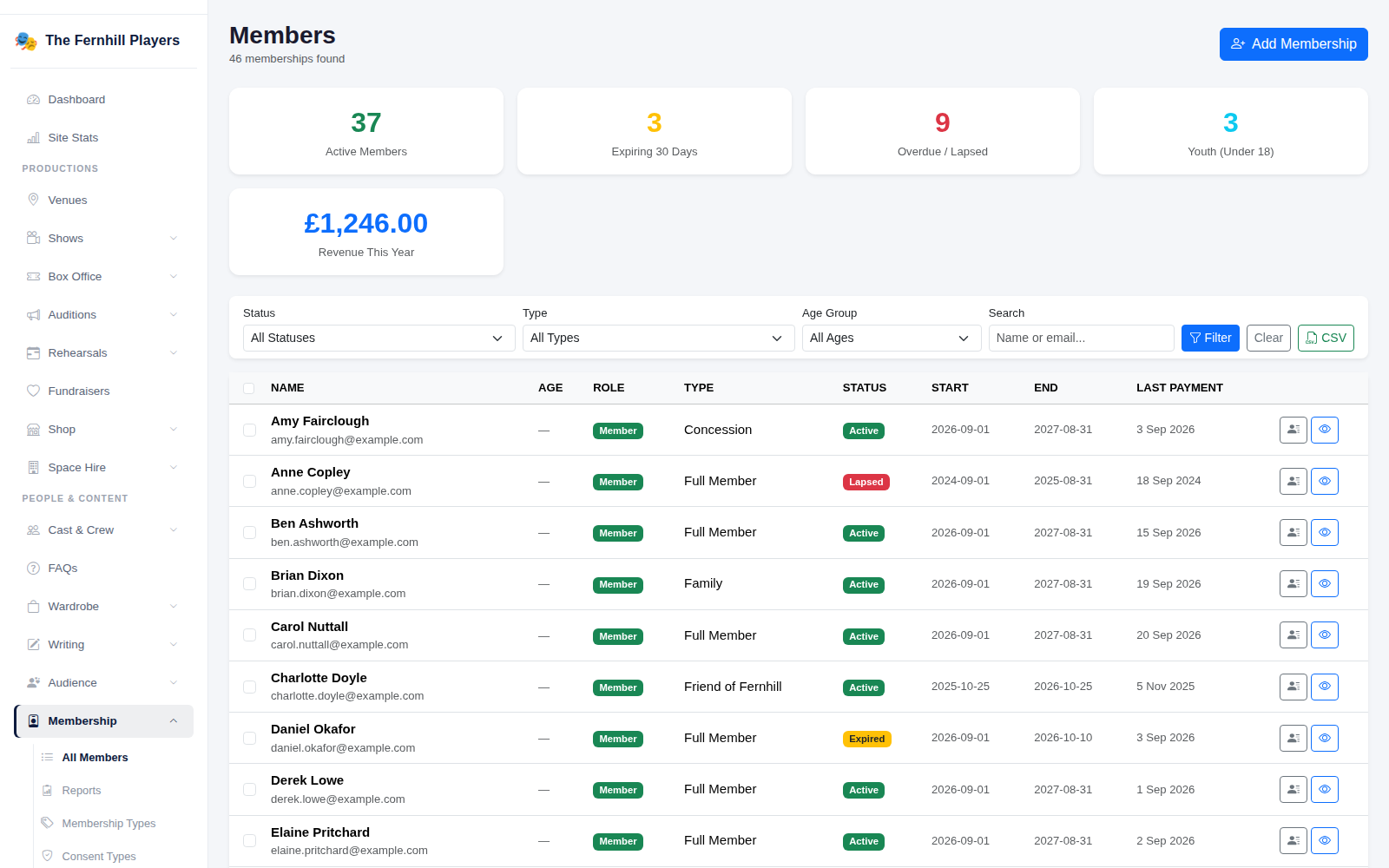
On Membership, filter by status, type or age group if you like, then click CSV to download your membership list. Membership > Reports has its own exports for the compliance reports. See Consent forms and membership compliance reports.
Shows, reports and more
- Shows: CSV > Export Shows downloads every production, with its performances, which you can also edit and import again. See Importing your shows from a spreadsheet.
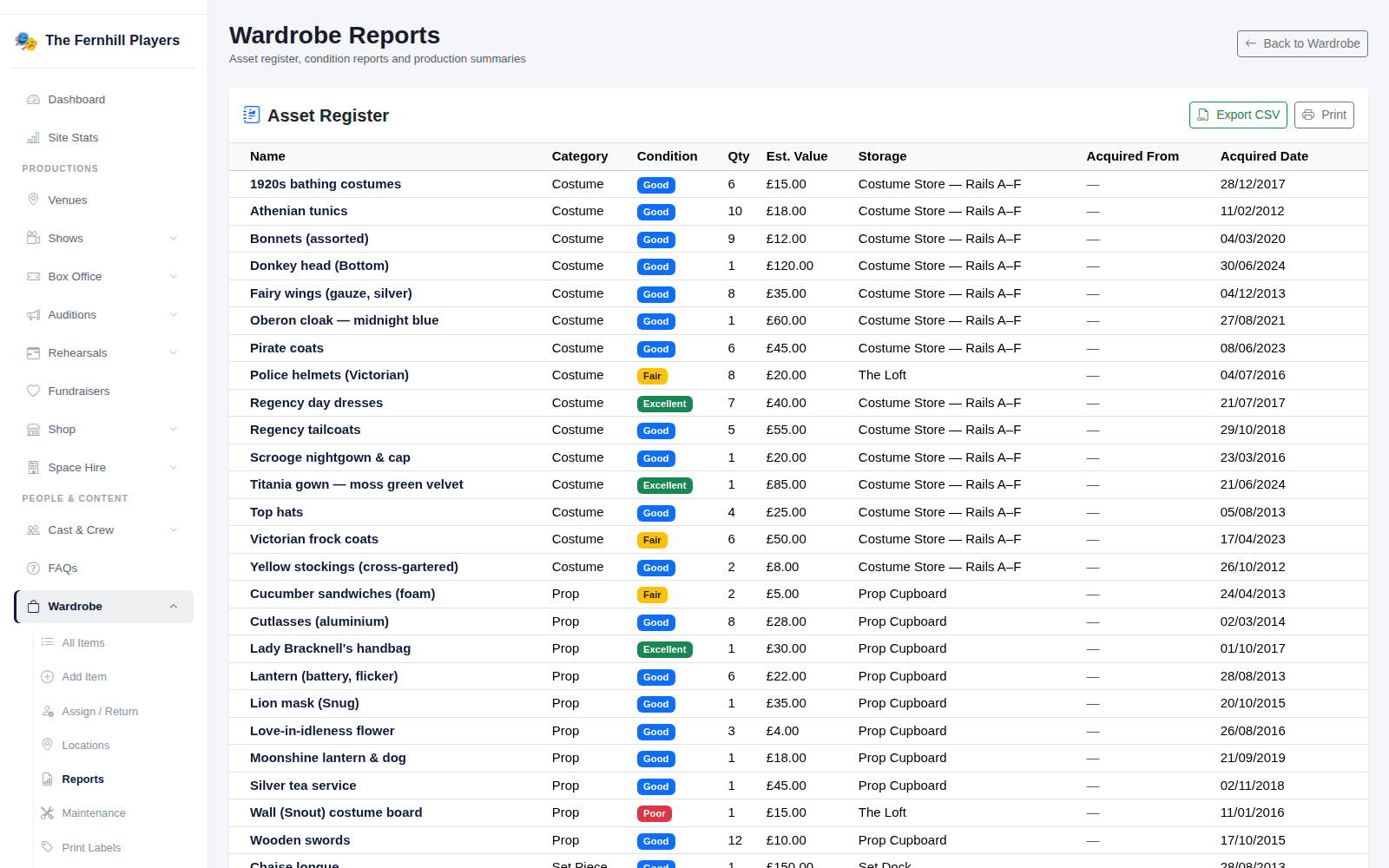
- Wardrobe: the reports page has an asset register of every item, with Export CSV and Print.
- Space Hire: the reports page exports your bookings.
- Shop: the reports page exports your sales.
- Fundraisers: each fundraiser's donations can be exported.
- Auditions: applicants for each audition can be exported.
One person's data
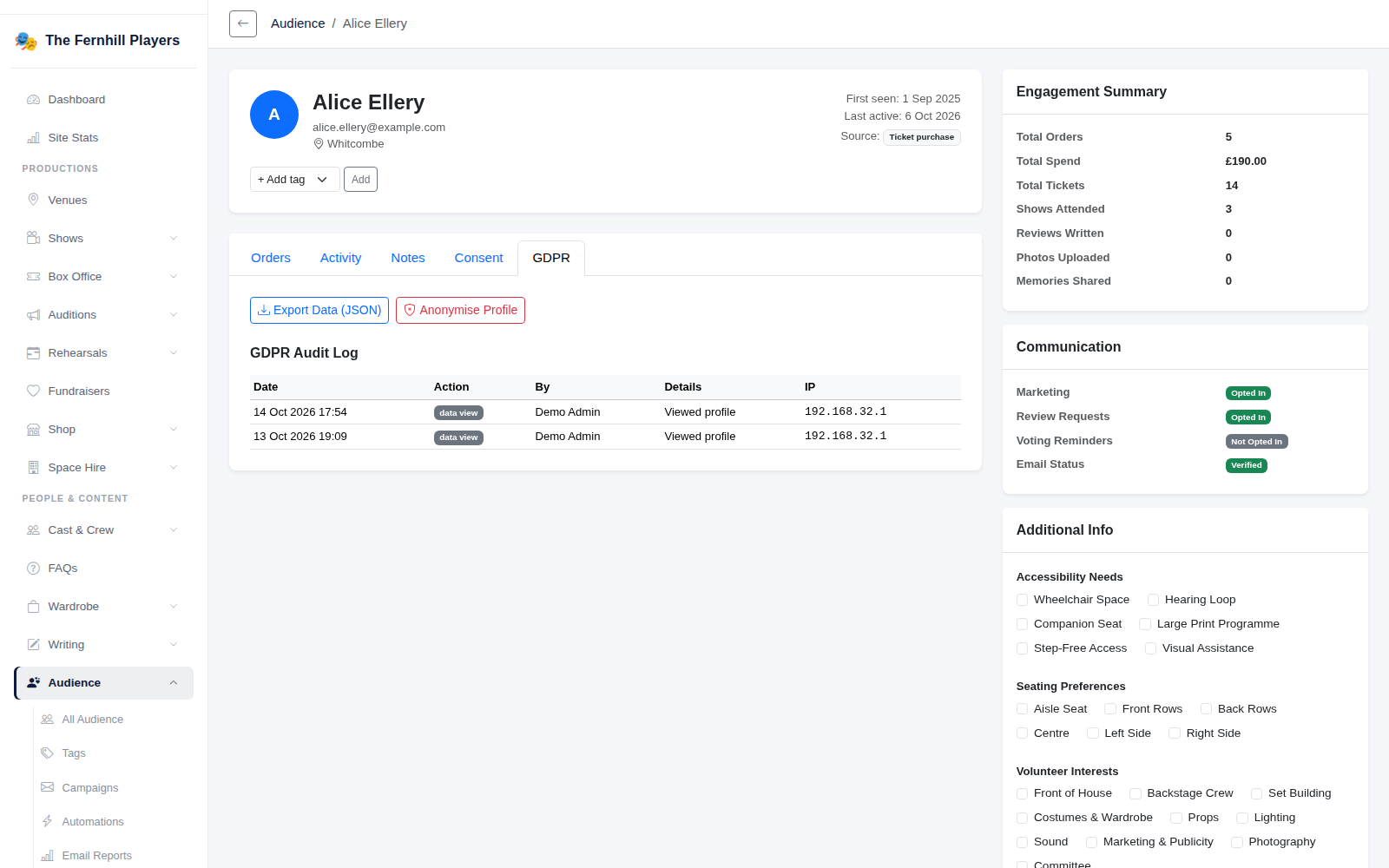
Anyone can ask what information you hold about them, and you have a month to reply. Open the person from All Audience, go to the GDPR tab and click Export Data. It downloads everything held about them in one file, and the request is noted in their GDPR log. The same tab has Anonymise Profile for when someone asks to be forgotten.
Look after the files
A downloaded spreadsheet is outside TheatreHQ's protection. Keep it somewhere secure, only share it with people who need it, and delete it when you're done. If one goes astray, see Recording a data breach.
Tip: a yearly export of your audience and members, kept securely by the secretary, is a sensible extra copy alongside TheatreHQ's own backups.