Moving to TheatreHQ from another system
A step-by-step plan for moving your society’s website, ticketing, audience list and members to TheatreHQ without losing anything, or anyone, along the way.
Most societies come to TheatreHQ from a mix of things: a website someone built years ago, a ticketing site that takes a fee from every booking, a mailing list in one place and a membership spreadsheet in another. This guide sets out the order to move things in, so your audience can keep booking the whole time and nothing gets lost.
The short version: set everything up first, put a show on sale, and switch your web address over last. Until you do, your old site keeps working as normal.
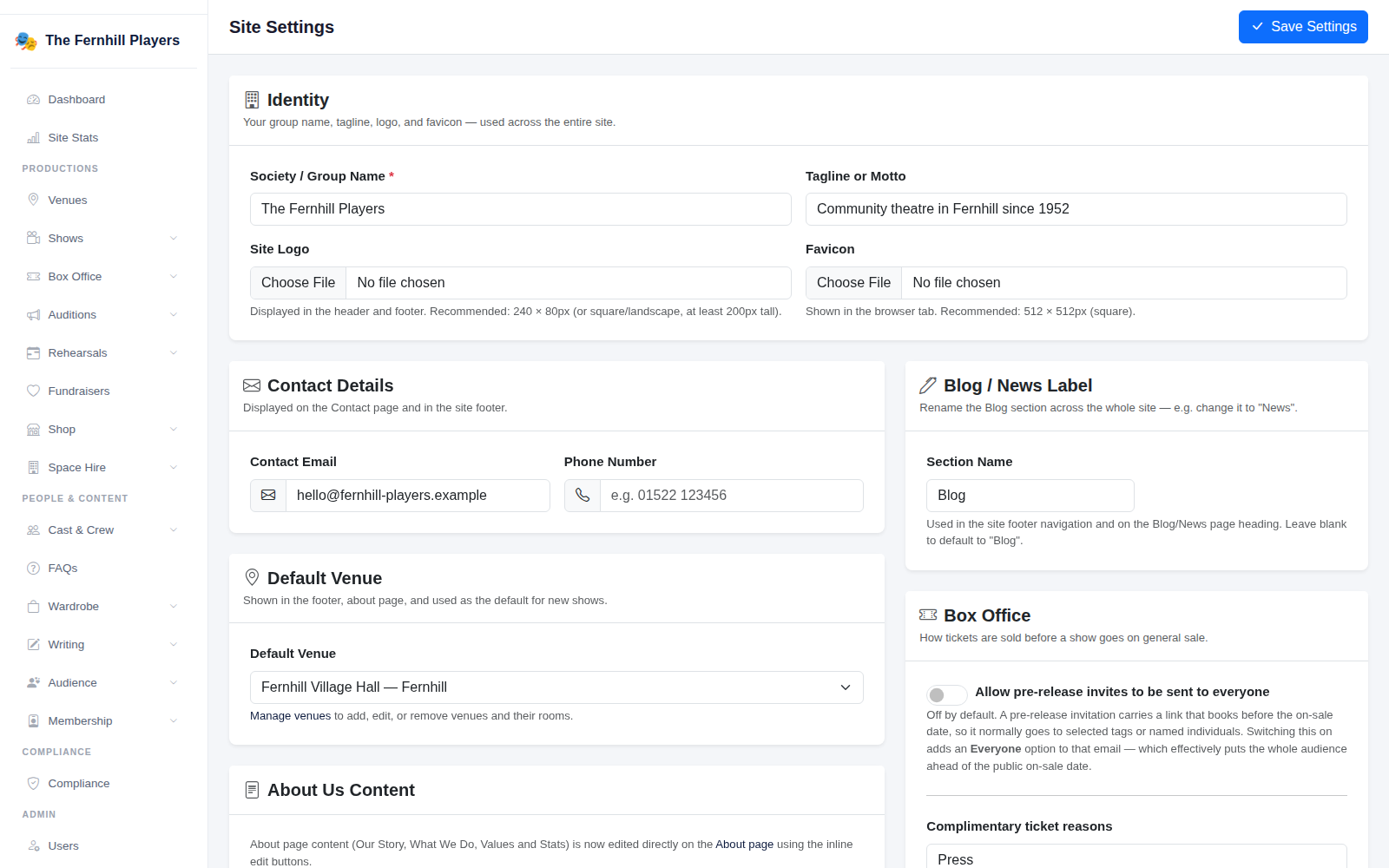
1. Add your society’s details and look
Start under Settings with your society's name, logo and contact details, then choose a theme and your colours under Design. It doesn't take long, and it makes everything after it feel like yours (see Your society’s name, logo and contact details).
2. Bring your past and future shows across
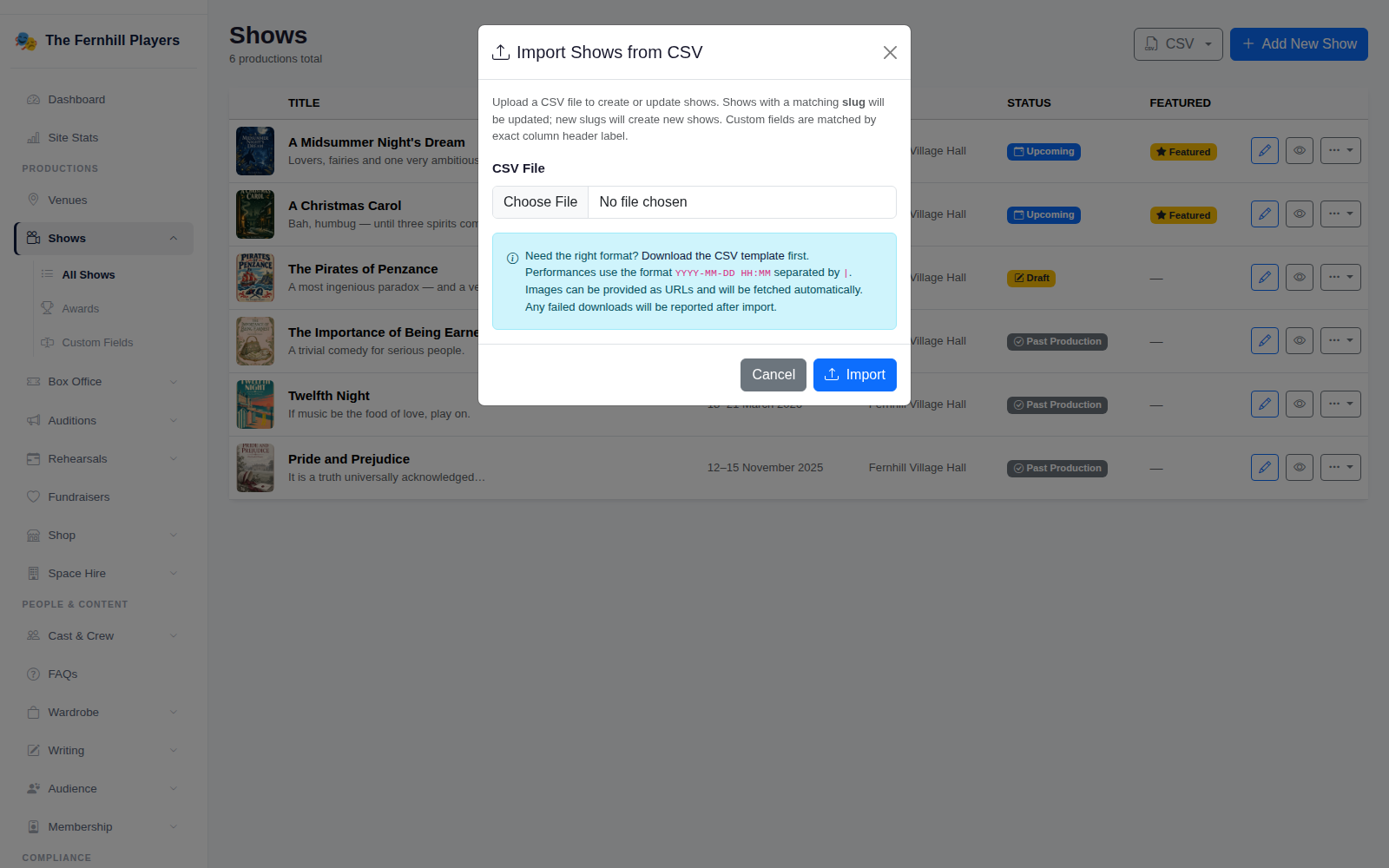
Your show history is part of what makes your website worth visiting. Rather than typing each one in, download the template from the CSV menu on the Shows page, fill it in from your old site or programme archive, and import it. Importing the same file again updates shows rather than adding them twice, so you can fix mistakes and re-run it (see Importing your shows from a spreadsheet).
3. Bring your audience list
Export your mailing list from your old email tool or ticketing site as a CSV file and import it under Audience. Anyone already in TheatreHQ with the same email address is filled in, not overwritten, and the import tells you about any row it skipped and why (see Importing your audience list from a spreadsheet).
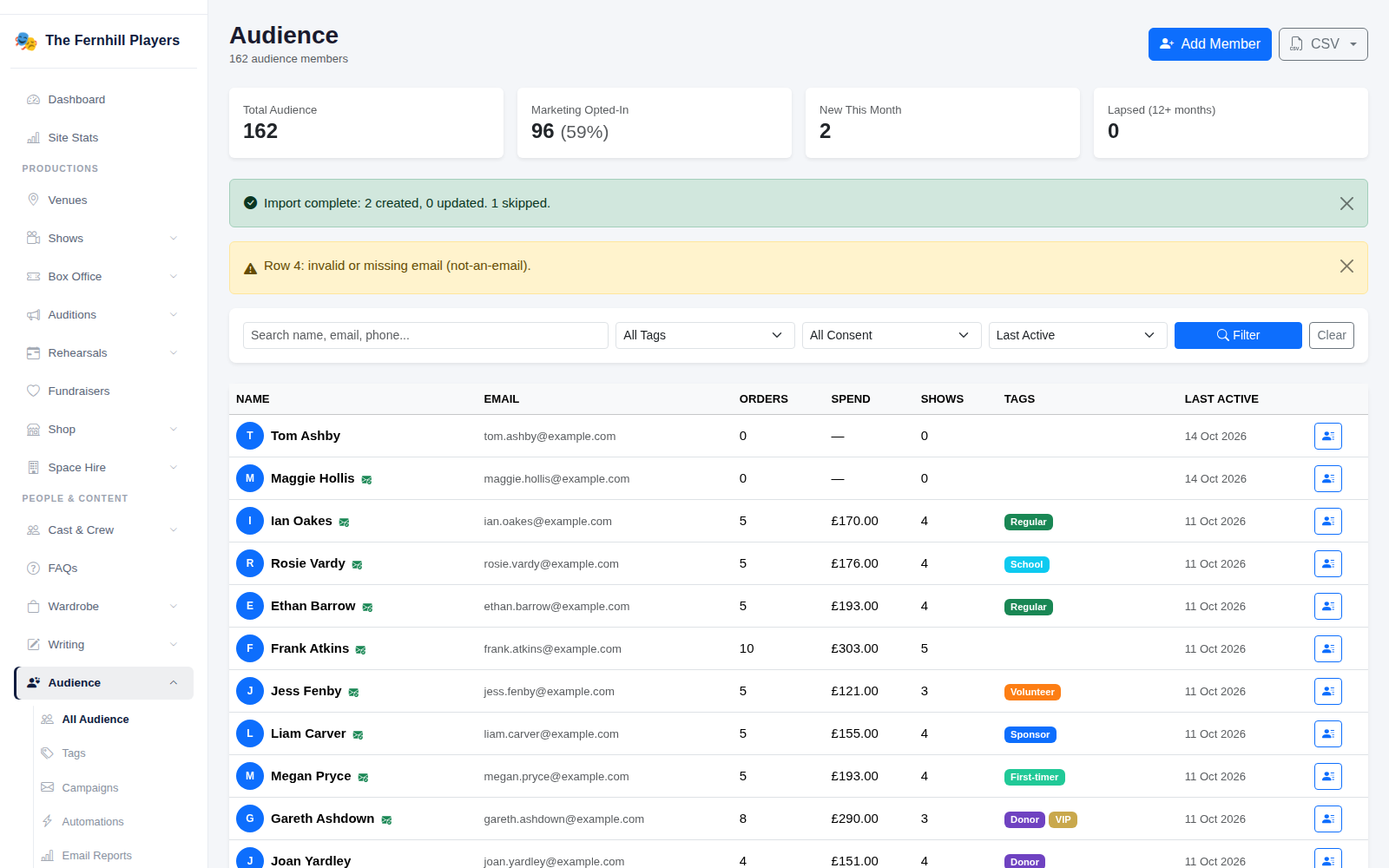
Only mark people as opted in to marketing if they agreed to hear from you in the first place. Your old system should show who did; if in doubt, leave them out of marketing and invite them to sign up again.
If you're staying with Mailchimp for newsletters, you can connect it to TheatreHQ instead (see Connecting Mailchimp).
4. Add your members
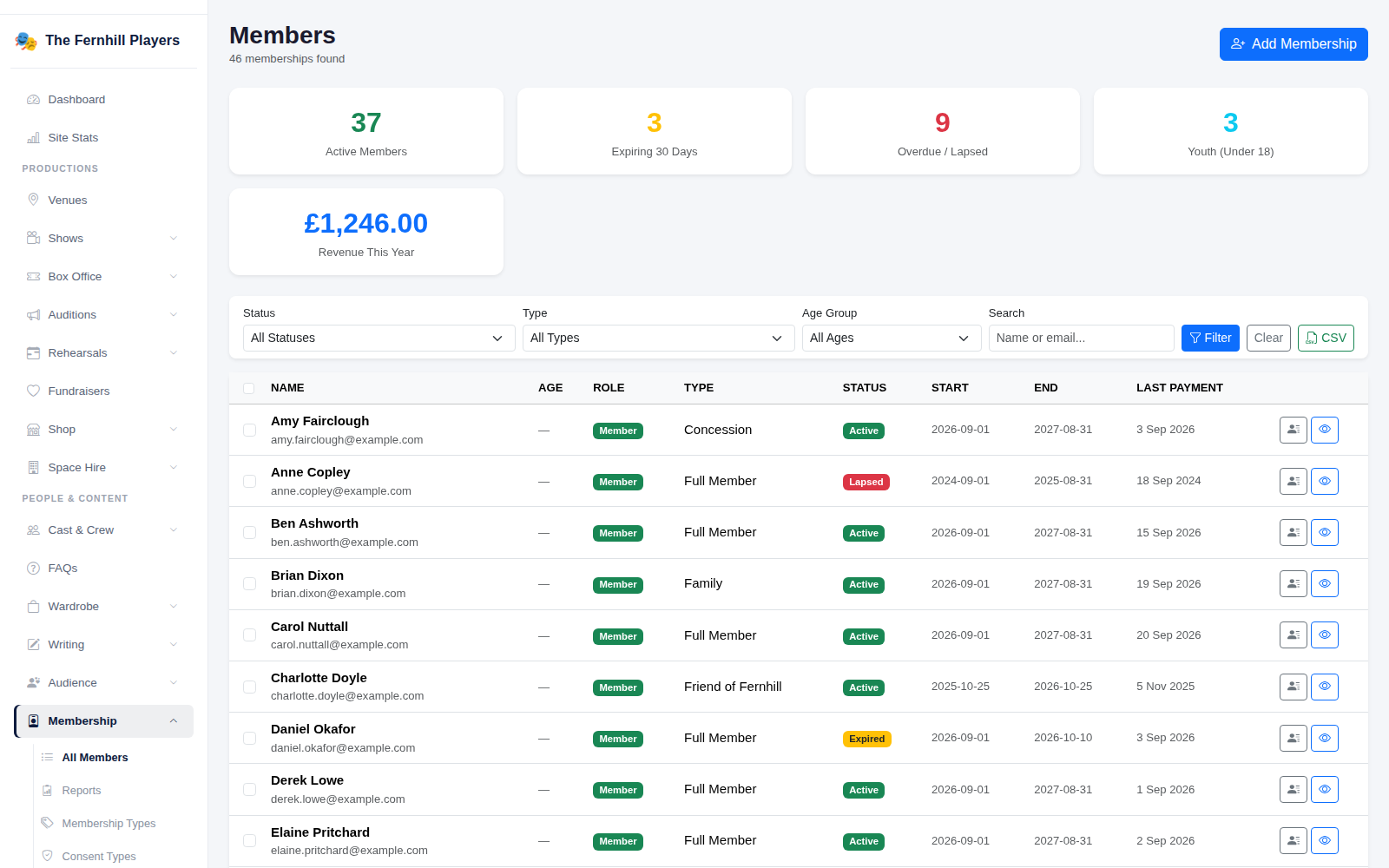
Set up your membership types first, such as Full, Concession, Youth or Family, each with its price and length. Then add your current members under Membership, with their start dates and whether they've paid, so renewal reminders go out at the right time from now on (see Setting up membership types and Adding members and recording membership payments).
5. Connect your payments
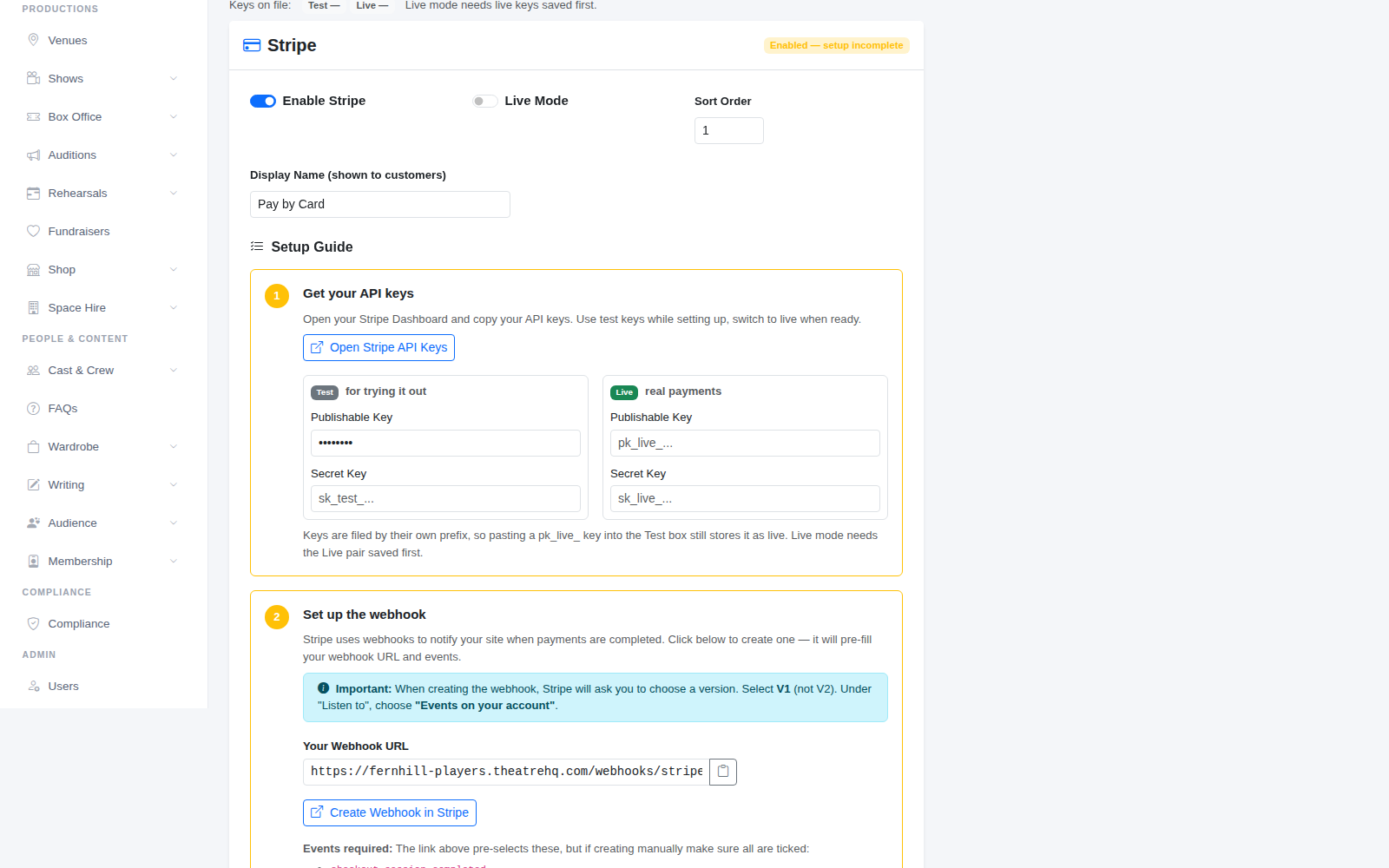
Connect Stripe so people can pay by card when they book. If you collect membership fees by Direct Debit, connect GoCardless as well. The money goes straight to your society's own account (see Connecting your payment providers).
6. Put your next show on sale
Set up your next show with its performances, ticket types and seating plan, and make a test booking yourself, ideally on a phone (see Getting started: your first show on sale).
If tickets for a show are already on sale somewhere else, let that show finish there and start your next one on TheatreHQ. Moving bookings halfway through a run means two lists at the door, and nobody enjoys that.
7. Keep your old links working
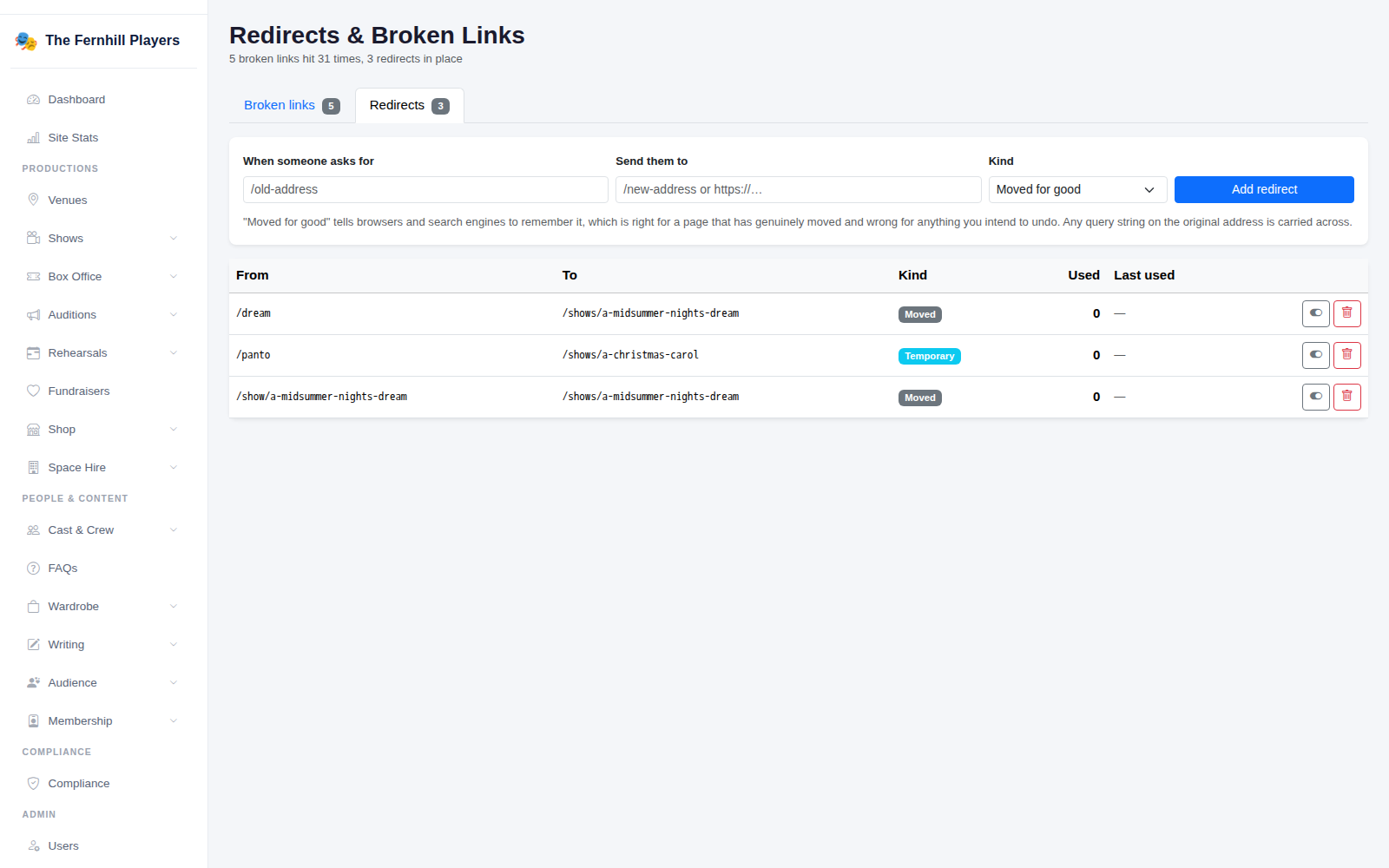
Old page addresses live on in Google results, Facebook posts and printed posters. Under Redirects, point each important old address, such as your old tickets or join us page, to its new home. After you switch over, the Broken links tab shows any old address people are still visiting, so you can redirect those too (see Redirects and broken links).
8. Invite your committee
Add your committee as users and choose what each person can see and change, so your treasurer, box office manager and wardrobe manager each have their own login (see Adding committee members).
9. Switch your domain over
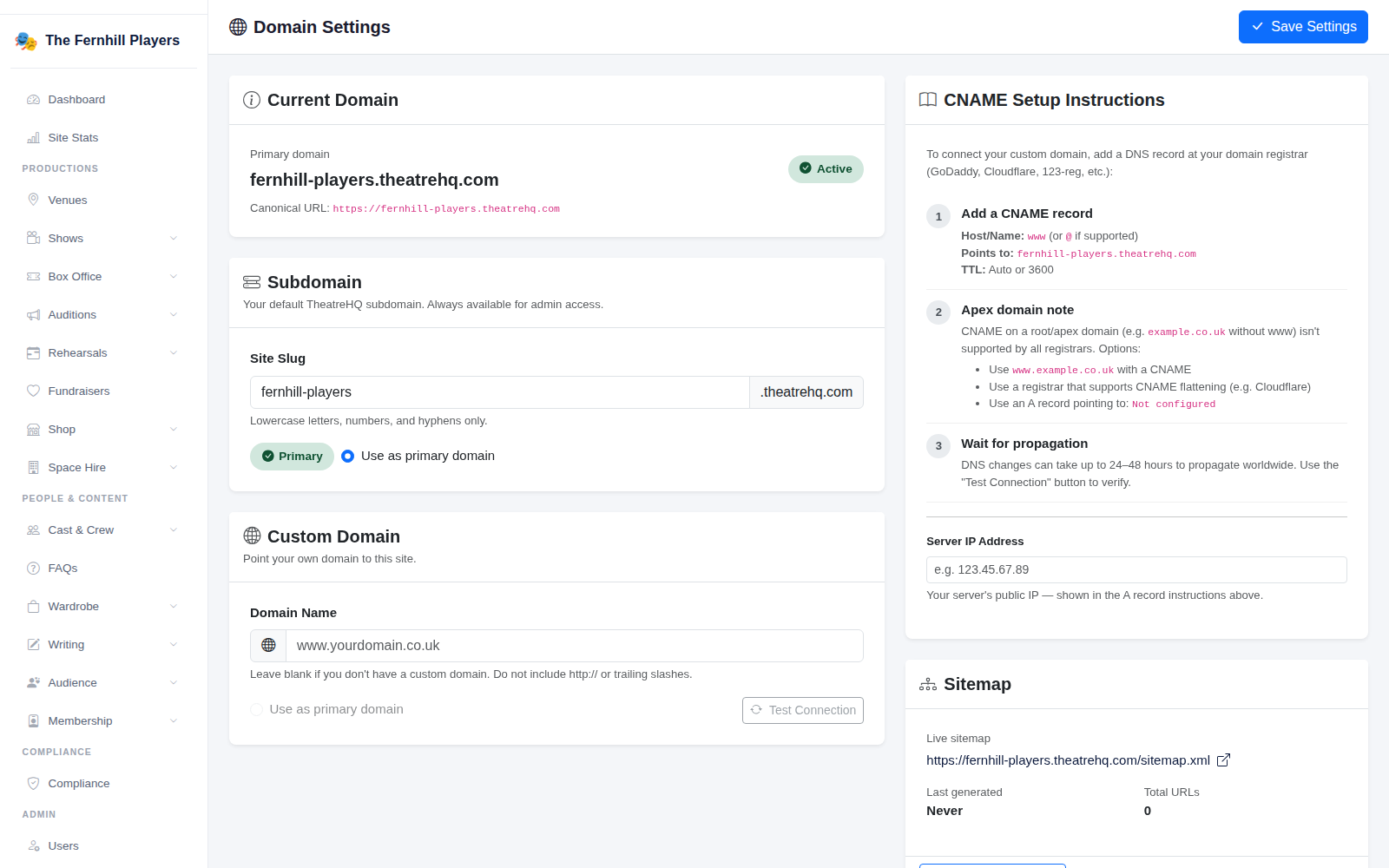
When you're happy with everything, point your own domain name at TheatreHQ under Domain Settings. This is the moment your new site goes live, so do it last, and tell whoever looks after your domain what you're changing (see Using your own domain name).
Before you cancel anything
Tip: keep your old subscriptions running until the last show sold there has finished, and download your old order history and mailing list for your records before you close those accounts.